Gamepad Tester

Gamepad Tester – Check Controllers PS5, PS4, PS3 & Xbox Free Online

Test your PS5, PS4, PS3, and Xbox controllers online for free with Gamepad Tester, the ultimate controller tester. Instantly check all buttons, sticks, triggers, and input response directly in your browser. Enjoy a quick, easy, and free online controller testing experience anytime, anywhere. Perfect for PS5 controller, Xbox, and other gamepads!

Scanning for controllers Disconnected USB compatible Bluetooth ready

Plug in your controller over USB or pair it over Bluetooth, Linux supports USB only, then press any button to begin.

We collaborate with 1,000+ company

Xbox PlayStation 5 GameSir
How it works

From plugging in to a full diagnosis, in minutes

Gamepad Tester runs entirely in your browser using the standard Gamepad API. Connect your controller, press a button, and every reading updates live, buttons, sticks, triggers, and vibration, with nothing to install and nothing to configure.

25 tools USB and Bluetooth No downloads Instant testing Free forever
USB connection

Plug your controller into any USB port and it is detected automatically. Works with all wired controllers and most wireless receivers, with no setup required.

Bluetooth connection

Pair through your device Bluetooth settings, then press any button once connected. The tester activates the moment it sees an input.

Four steps to a complete diagnosis

The same process behind every tool on this site

1

Connect

Plug in over USB or pair over Bluetooth

  • Works with any recognized controller
  • No drivers or extensions needed
2

Detect

Press any button and the browser finds it

  • The Gamepad API activates on first input
  • Your controller slot lights up instantly
3

Test

Press buttons, move sticks, pull triggers

  • Every input updates live as you go
  • Choose from 25 focused diagnostic tools
4

Diagnose

Review your results and act on them

  • Spot drift, weak motors, or missed inputs
  • Export a report if you need one

All readings happen locally in your browser. Nothing is sent to a server unless you choose to export a report yourself. Read more in Learn.

What should we test first on your controller

Buttons & Inputs

Check every face button, D pad, and trigger for consistent response.

Sticks & Precision

Measure drift, deadzone, and circularity on both analog sticks.

Performance

Test input latency, polling rate, and connection stability.

Vibration & More

Check dual motor feedback and explore every other tool on the site.

Not sure where to start? Run the full Controller Benchmark and it will point you to the right tool for what needs attention.

Every result comes from real browser testing

No manual data entry and no copied spec sheets. Every number you see comes directly from your own controller through the standard Gamepad API, read live while you test.

  • Live readings straight from your controller
  • No installation or account required
  • Results shown the moment you press a button
  • Free to use, every tool, every time

What is Gamepad Tester

Gamepad Tester is a free, browser based toolkit for checking every part of a game controller, including buttons, sticks, triggers, vibration, latency, and more. Everything runs directly in your browser using the standard Gamepad API, so there is nothing to install and nothing to configure. Connect a controller, press a button, and results appear instantly.

Gamepad Tester features

  • 25 free diagnostic tools
  • Works with Xbox, PlayStation, Nintendo, and generic controllers
  • No installation or account required
  • Live button, stick, and trigger visualization
  • Polling rate and input latency measurement
  • Dual motor vibration testing
  • Exportable diagnostic reports
  • Runs entirely inside your browser

Why choose Gamepad Tester

No downloads, no accounts, and no hidden data collection. Every reading happens locally in your browser, every tool is free, and every rating links back to the exact tool that produced it so you can verify results yourself.

How it works

Connect your controller over USB or Bluetooth. Open any tool and press a button to begin. Watch live results update in real time as you move sticks, pull triggers, and press buttons.

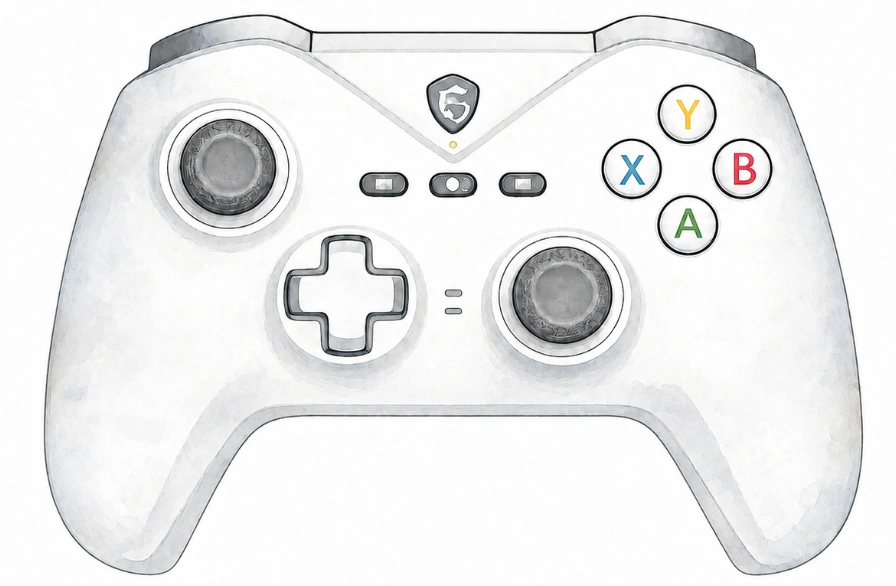
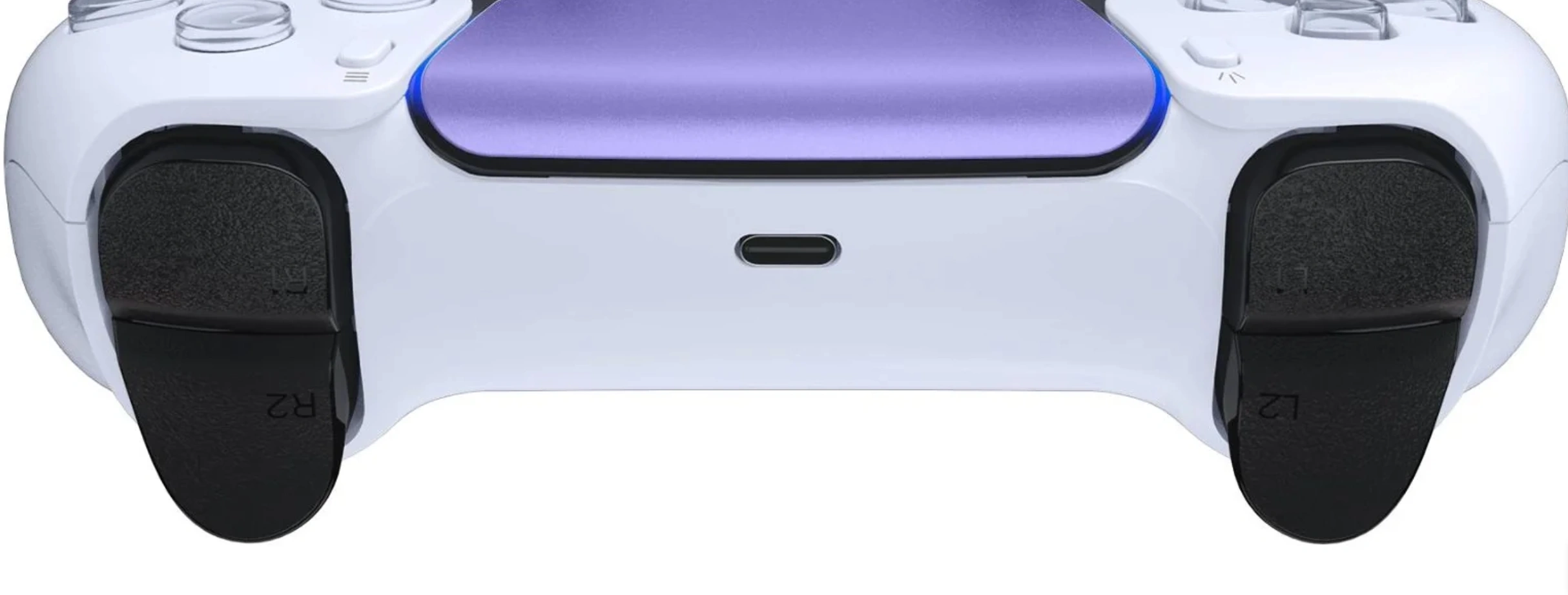
Button mapping guide showing a controller with labeled inputs
Free online tool, no install required

Test your PS5, PS4, PS3, and Xbox controllers free and instant

Plug in your gamepad and start testing in seconds. Diagnose button issues, stick drift, trigger sensitivity, and vibration, all directly in your browser with live results.

  • Real time button press detection
  • Analog stick movement and drift check
  • Trigger range and pressure testing
  • Vibration and dual motor testing
  • Connection status and polling rate
  • Battery level indicator support
  • Deadzone and circularity visualization
  • Exportable diagnostic reports
Works with USB and Bluetooth Connect your controller, press any button, and the tester activates automatically. No extensions, no app installs, and no account needed.
PS5 DualSense PS4 DualShock 4 PS3 DualShock 3 Xbox Series X and S Xbox One Xbox 360 Generic USB HID
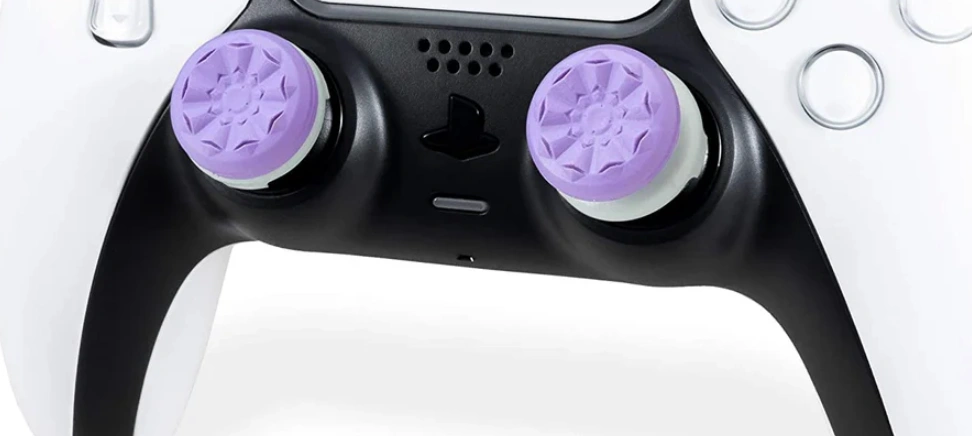
Close up of an analog stick showing precision tracking
Complete guide

The complete controller testing guide

Everything you need to know about testing a game controller, what to check, how to read the results, and what to do when something is wrong.

At a glance
30+Controllers supported
25Diagnostic tools
4Simultaneous slots
0Downloads needed
100%Free to use
What is Gamepad Tester

The complete free browser based controller tester

Gamepad Tester is a free, browser based controller testing tool with advanced diagnostics and live input visualization. The site supports more than 30 controller types. Plug in your gamepad over USB or connect it over Bluetooth, and the on screen controller display appears immediately. Press each button, move each stick, and read the live results to see which inputs are responding correctly and whether a stick shows any drift.

Run tests for the PS5 DualSense, PS4 DualShock 4, PS3 DualShock 3, Xbox Series X and S, and Xbox One, along with Nintendo Switch, PC, and generic controllers, all without installing any software, drivers, or browser extensions.

Testing becomes worthwhile the moment you notice input lag, stick drift, a button that misfires, or a response that feels inconsistent. This guide covers how to run a complete diagnostic, spot common controller problems early, and keep your controller performing well before a small issue turns into a repair or replacement.

Supported device categories

Sony PS5, PS4, PS3

DualSense, DualShock 4, and DualShock 3 with full button and haptic support

Xbox Series and One

Xbox Series X and S, Xbox One, Xbox Elite Series 2, and the Adaptive Controller

Nintendo Switch

Switch Pro Controller, Joy Con left and right, and GameCube via adapter

PC and pro gaming

Logitech F series, Razer Wolverine, and generic XInput or DirectInput devices

Mobile controllers

Backbone One, GameSir mobile pads, and Bluetooth controllers for phones and tablets

Sim and racing

Logitech G29 and G920, Thrustmaster wheels, flight sticks, and arcade fight sticks

Advanced testing features
01

Button Test

Press every button and watch each indicator light up live, catching stuck or unresponsive inputs.

02

Stick Drift Test

Watch live X and Y axis values at rest and in motion to diagnose one of the most common controller faults.

03

Deadzone Test

Visualize the dead zone radius on both sticks and check where small movements start to register.

04

Circularity Test

Move a stick in a full circle and see how closely the path traces a true circle rather than an oval.

05

Snapback Test

Measure how quickly a stick returns to center after release, including any overshoot.

06

Trigger Pressure Test

Squeeze each trigger gradually to confirm smooth analog response from 0 to 100 percent.

07

Vibration Test

Independently test both rumble motors with heavy, light, burst, and pulse presets.

08

Polling Rate Test

Estimate how many times per second your controller reports new data to the browser.

09

Latency Test

Measure the delay between a physical press and the browser registering it, wired versus wireless.

10

Connection Stability Test

Monitor for dropped inputs or disconnects during an extended session.

11

Microphone Test

Check the built in microphone on supported controllers and headsets.

12

Controller Benchmark

Run every test in sequence and get one overall health score for your controller.

How to test your controller

Connect your controller

Plug in over USB or pair over Bluetooth. No drivers or software are required, the browser handles detection.

Activate with any button

Press any button to activate the controller. The Gamepad API requires a physical input before a device appears.

Test every button

Press each button individually and confirm the on screen indicator responds. Check face buttons, D pad, triggers, and system buttons.

Check analog sticks

Move each stick through its full range, then release it. Values that do not return close to zero point to drift.

Check trigger depth

Squeeze each trigger gradually to confirm a smooth reading across the full range. A sudden jump suggests wear.

Test vibration motors

Run the vibration presets to confirm both motors respond with the expected intensity.

Supported controllers by brand
PS

Sony PlayStation

PS3, PS4, and PS5 controllers

  • DualSense, PS5Full support
  • DualSense Edge, PS5Full support
  • DualShock 4, PS4Full support
  • DualShock 3, PS3USB recommended
X

Microsoft Xbox

Xbox 360 through Series X and S

  • Xbox Series X and SFull support
  • Xbox Elite Series 1 and 2Full support
  • Xbox OneFull support
  • Xbox 360, wired or wireless with a receiverFull support
N

Nintendo

Switch, GameCube, and Wii U

  • Switch Pro ControllerFull support
  • Joy Con, left and right pairVaries by browser
  • GameCube, via USB adapterVia adapter
  • Wii U Pro ControllerVia adapter
PC

PC and third party

Common generic and licensed pads

  • 8BitDo controllersFull support
  • Logitech F310 and F710Full support
  • Generic USB HID gamepadsVaries by device
  • Custom and arcade style padsVaries by device
Common problems and how to diagnose them
Problem

Stick drift

The camera or character moves on its own even though you are not touching the stick.

  • Release both sticks completely
  • Check whether the axis values sit near zero
  • A reading over roughly 5 percent at rest suggests drift
Problem

Unresponsive or stuck button

A button does not register at all, or it registers even when nothing is pressing it.

  • Press firmly and hold briefly
  • Confirm the on screen indicator responds
  • Debris under the cap is a common cause
Problem

Trigger not reaching full range

A trigger should read smoothly from 0 to 100 percent. Anything less suggests wear or debris.

  • Press the trigger slowly to its limit
  • Confirm it reaches 100 percent
  • Sudden jumps point to a mechanical issue
Info

Controller not detected

The browser requires a physical button press before it recognizes a connected controller.

  • Confirm the cable or pairing is solid
  • Press any button to activate it
  • Use Chrome, Edge, or Firefox for the widest support
Problem

No vibration response

The rumble test produces nothing, which can point to the browser, the connection, or the motors themselves.

  • Try Chrome or Edge for the widest haptic support
  • Confirm the controller exposes vibration to the browser
  • USB often gives more reliable haptic support than Bluetooth
Tip

Input lag or delayed response

Noticeable delay between pressing a button and seeing it register can come from the connection or the browser.

  • Switch from Bluetooth to USB for the lowest latency
  • Close other tabs running background tasks
  • Use a direct USB port rather than a hub

For a full symptom by symptom walkthrough, see Fix.

Tips for better testing

Test when charged

Low battery can cause inconsistent response and weaker haptics. Test on a full charge or wired.

Clean before testing

Dust under a button cap is a common cause of stuck inputs. A quick clean can resolve many false faults.

Test at room temperature

Cold can make analog components behave oddly. Let a controller warm up before a stick drift test.

Use USB for accuracy

Bluetooth adds variable latency. For the most precise timing and polling readings, test over USB.

Test more than once

An intermittent fault may not show every time. Run the full test twice to confirm it is consistent.

Export your results

Save a report to document a fault when contacting support or filing a warranty claim.

In detail

See exactly what each tool does

A closer look at how Gamepad Tester checks buttons, sticks, triggers, vibration, and macro patterns, all straight from your browser.

Controller face buttons labeled X, A, Y, B showing live button mapping

Button Mapping

See exactly which physical button corresponds to which input index, live, as you press it. No guesswork about how your controller is wired.

  • Live highlight of every button as you press it
  • Works with Xbox, PlayStation, Nintendo, and generic layouts
  • Instantly spot unmapped or misread buttons
  • A clear reference for building your own control scheme

Tip: run the mapping tool before setting up in game key bindings, so you know your layout is correct first.

Analog Sticks

Test both sticks for precision, drift, and deadzone accuracy with a live crosshair view of exactly where your input is landing.

  • Live crosshair tracking for both sticks
  • Deadzone and circularity visualization
  • Drift detection while the stick is at rest
  • Left and right stick results shown side by side

Tip: rest the controller down and watch the crosshair, any movement on its own is the fastest way to catch drift early.

Close up of an analog stick showing live precision and drift tracking
Controller trigger close up showing live pressure percentage readings

Triggers

Measure the full pull range of both triggers with a live pressure reading, from fully released to fully pressed.

  • Live 0 to 1 pressure readout for each trigger
  • Independent left and right trigger bars
  • Smoothness check across the full pull
  • Adaptive trigger position tracking where supported

Tip: pull each trigger slowly from released to fully pressed, a smooth reading means healthy sensors.

Vibration

Trigger both rumble motors individually to confirm your controller's haptic feedback is working the way it should.

  • Heavy, light, burst, and pulse presets
  • Dual motor visual feedback
  • Works over USB and Bluetooth where supported
  • Confirms overall force feedback system health

Tip: run each preset once, if one side feels noticeably weaker than the other, that motor may be failing.

Controller showing a live vibration pulse animation during a motor test
Controller button layout used to visualize input timing patterns for macro detection

Macro Detector

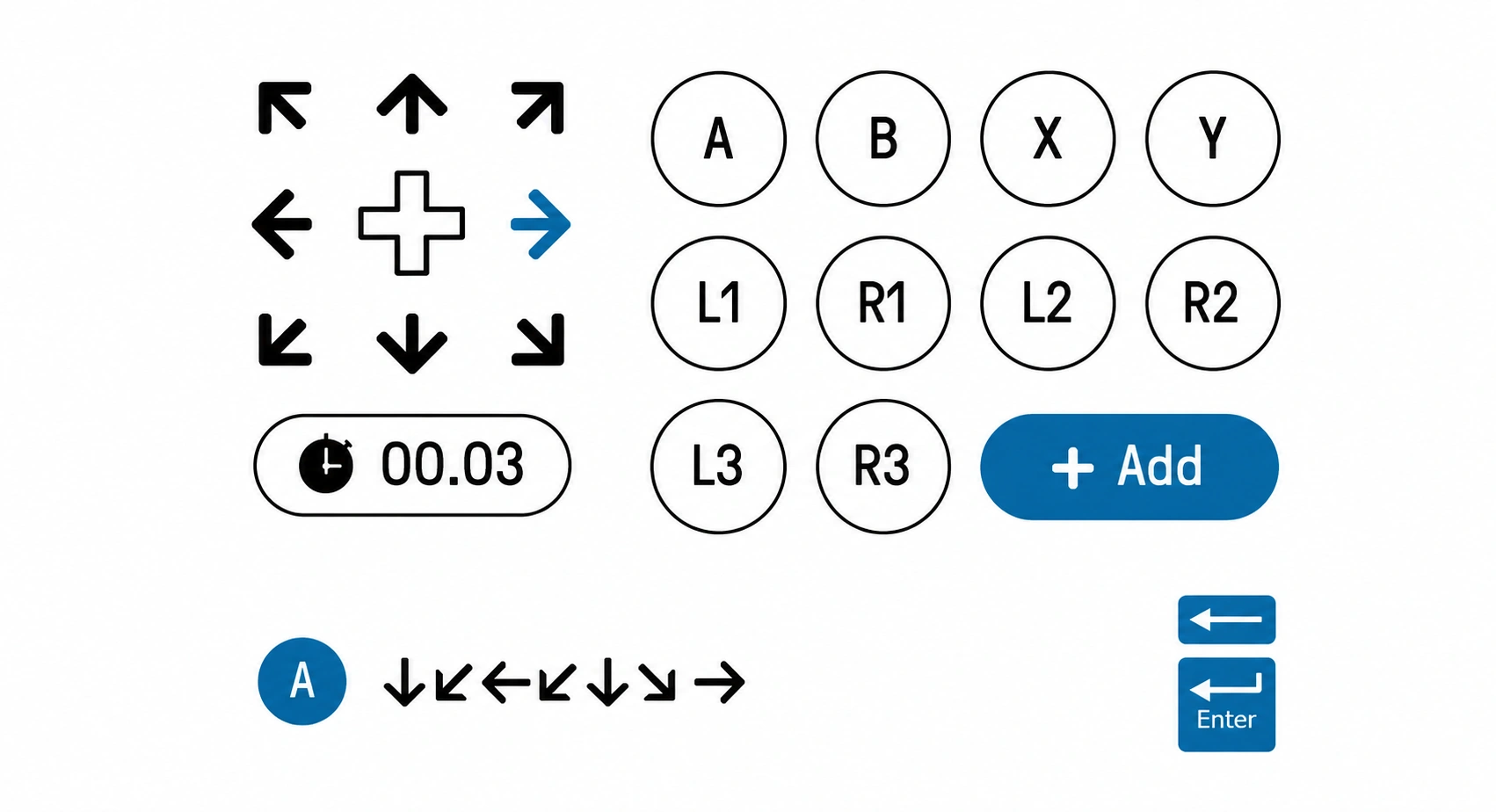
Analyze input timing patterns to flag suspiciously consistent, possibly macro driven inputs during a play session.

  • Input interval consistency analysis
  • Pattern flagging for repeated sequences
  • Session based reporting
  • Useful for verifying fair play

Tip: run this during a normal play session, then compare timing consistency against typical human variation.

Answers

Frequently asked questions

Everything people ask about Gamepad Tester, the tools, troubleshooting, guides, and how controllers actually work.

What is Gamepad Tester

Gamepad Tester is a free browser based toolkit for checking every part of a game controller, including buttons, sticks, triggers, vibration, latency, and more. Everything runs directly through the standard Gamepad API, so there is nothing to install.

How many tools does the site have

There are 25 tools covering buttons, sticks, triggers, performance, and general device diagnostics. The full list is on the Tester Tools page, grouped by category.

My controller will not connect, what should I do

Start with the cable, USB port, or Bluetooth pairing before assuming a hardware fault. The full checklist is on the Fix page under Connection problems.

What is the difference between Guides and Fix

Guides teach a concept or a process end to end, such as pairing a controller over Bluetooth. Fix pages are shorter and symptom specific, aimed at someone dealing with a single problem right now.

What is the Gamepad API

A web standard supported by every major browser that lets a website read a connected controller's buttons and sticks without installing any software. More detail is in the Learn section.

Is Gamepad Tester free to use

Yes. Every tool on the site is free, with no account, no paywall, and no limit on how many times you can run a test.

Which controllers are supported

Xbox, PlayStation DualShock and DualSense, Nintendo Switch Pro, and most generic USB or Bluetooth controllers are supported through the standard Gamepad API.

How do I know if it is stick drift

Rest the controller down and watch the crosshair in the Stick Drift Test. Any movement while your thumb is not touching the stick points to drift.

Do the guides work for every controller brand

Most guides apply across Xbox, PlayStation, Nintendo, and generic controllers, with brand specific steps called out where the process actually differs.

Why does my controller show extra unmapped buttons

Some controllers report more buttons and axes than they physically have, based on how the Gamepad API standard mapping works. This is normal and does not indicate a fault.

Do I need to create an account

No account is required for any tool. You only need to provide an email if you choose to subscribe to updates or contact support directly.

Is my controller data stored anywhere

No. All readings happen locally in your browser and are not sent to a server unless you choose to export a report yourself.

Why does my controller feel warm during use

Mild warmth during charging is normal for lithium batteries. Warmth during normal play without charging is worth monitoring but is rarely a sign of a serious problem on its own.

How often are guides updated

Guides are revisited when a browser standard changes or when a new controller generation changes the steps described in the guide.

What is the difference between polling rate and latency

Polling rate is how often your controller sends an update, measured in Hz. Latency is the actual delay between a press and that input becoming usable, which polling rate influences but does not fully determine.

Which browser works best

Chrome, Edge, and other Chromium based browsers offer the most complete Gamepad API support. Firefox and Safari work for most tools, though a few features such as vibration control may be limited.

Can I test more than one controller at once

Yes. Several tools support up to four connected controllers at the same time, useful for comparing two units side by side.

When should I contact manufacturer support instead of fixing it myself

If the controller is still under warranty or the fix involves opening the case, contact the manufacturer first. A self repair can void a warranty that would otherwise cover the fix for free.

Can I follow a guide and test at the same time

Yes. Every guide is written to be followed alongside a live tool, so opening the matching tester in a second tab is the recommended way to read them.

Is Hall effect really better than a potentiometer

Hall effect sensors read a stick's position without physical contact, so they avoid the specific friction based wear that causes most drift. They are not indestructible, but they resist the most common failure mode.

No questions match your search.