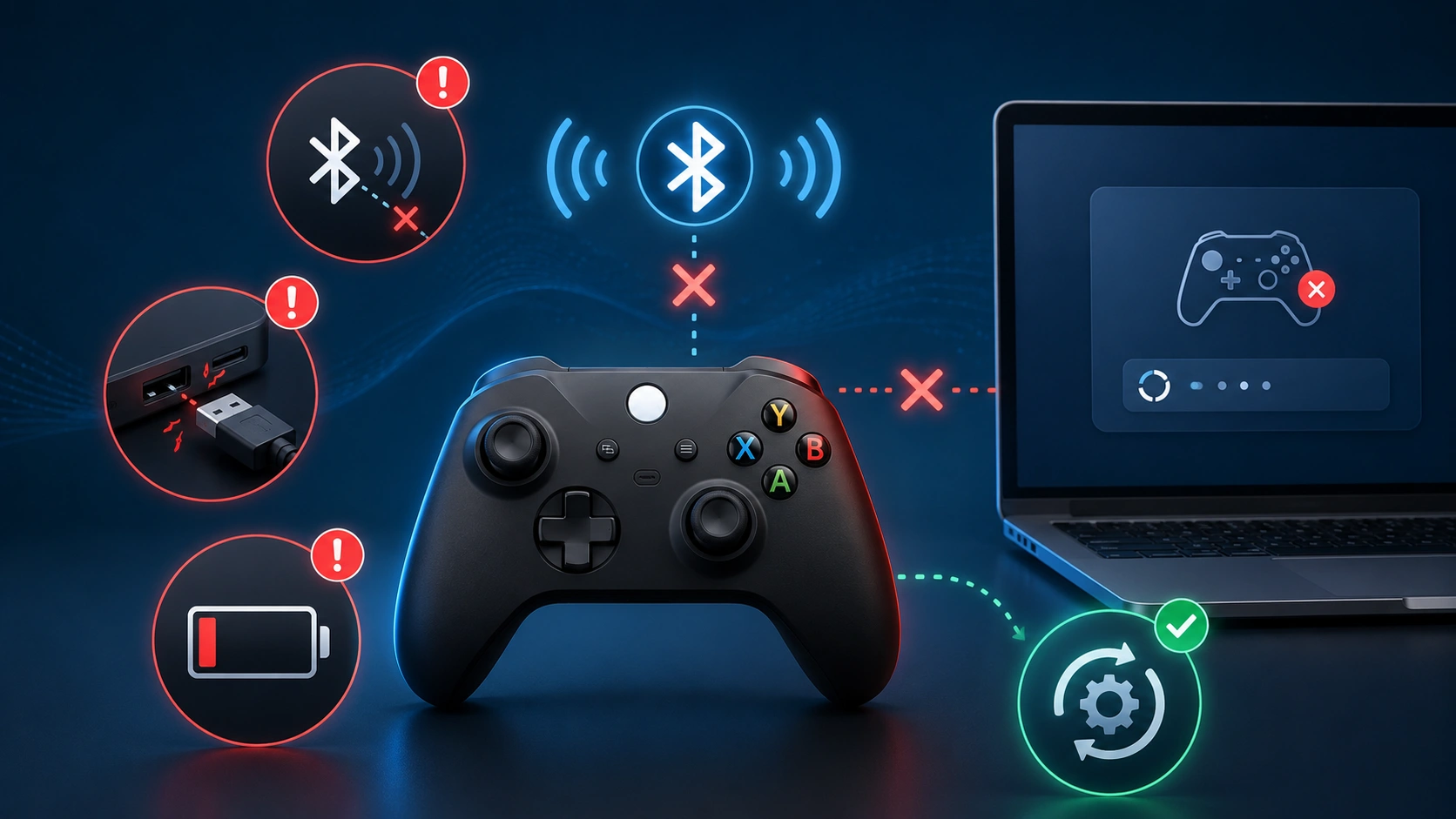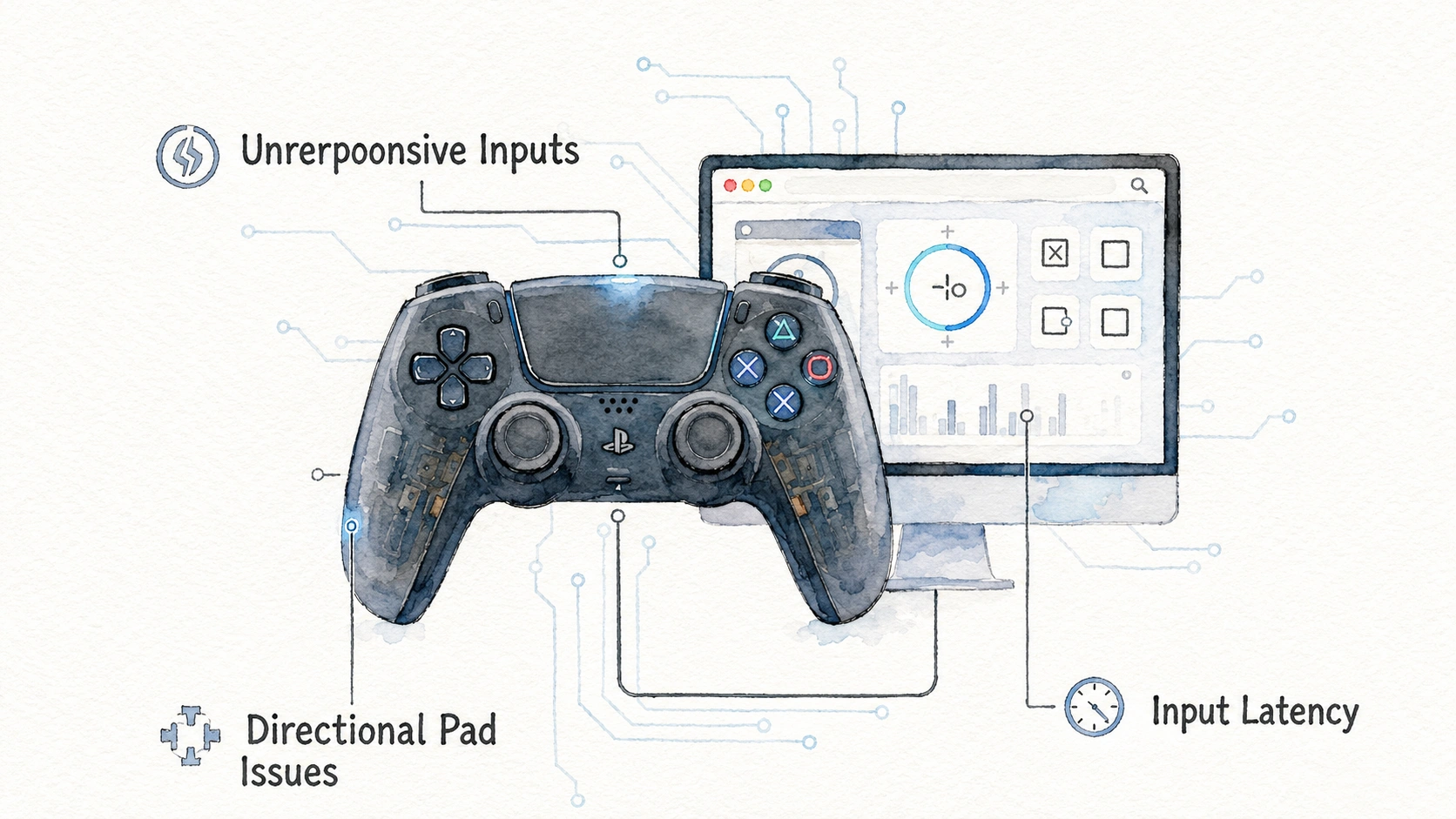
A Controller Not Connecting to pc is one of the most frustrating tech problems out there, mainly because there are so many different reasons it can happen. Sometimes it is a cable problem, sometimes it is Windows being stubborn, and sometimes the controller itself has a hardware fault.
This guide is organized by symptom instead of by controller brand, because the actual fix usually depends more on what exactly is going wrong than which controller you own. Whether you use an Xbox pad, a PS5 DualSense, a PS4 DualShock, a Switch Pro Controller, or a generic USB gamepad, find your symptom below and work through the fixes in order.
Symptom: Controller Shows No Reaction At All When Plugged In
This is the most basic and often the most fixable problem. No lights, no sound from Windows, nothing happens when you plug the cable in.
Start With These Checks
- Try a different USB cable, since charging only cables are common and they do not transfer data
- Plug directly into a USB port on the back of your desktop tower instead of a front panel port or a hub
- Try a different USB port entirely, ideally a USB 2.0 port if you were using USB 3.0, or the other way around
- Test the same cable and port with a different device, like a phone, to confirm the cable actually works
Here is a quick table to help narrow down the cause:
| What Happens | Likely Cause |
|---|---|
| Nothing at all, no sound, no light | Bad cable or dead port |
| Windows makes a sound but nothing shows in Device Manager | Driver issue |
| Controller light turns on but PC does not detect it | Connection mode mismatch |
| Works on one port but not another | Faulty or underpowered USB port |
A repair technician who works on gaming peripherals mentioned that cable problems account for a huge share of “controller not working” complaints, way more than people expect. Cheap cables that only carry power and not data are the biggest offender.
Symptom: Windows Detects the Controller But Games Do Not See It
This one is sneaky because it looks like everything is fine on the surface. Windows makes the little connection sound, the device shows up somewhere, but your actual game acts like nothing is plugged in.
Steps to Check This
- Open the Windows search bar and type “Set up USB game controllers”, then open that result
- Your controller should appear listed there
- Click Properties, then check if the stick and button test screen responds when you move things
If the controller shows up here but not in your game, the issue is usually related to the game’s own controller settings, not Windows itself.
- Check the game’s input settings menu and make sure a controller input mode is selected instead of keyboard and mouse
- Some games require you to press a controller button first before they switch input modes automatically
- Restart the game completely after plugging the controller in, some games only detect controllers at launch
A good habit here is testing with a neutral tool first, like a browser based gamepad tester, before blaming the game. If the tester site sees your buttons and sticks moving correctly, you know the hardware and Windows are both fine, and the problem is isolated to that one specific game.
Browser-based testing tools read controller buttons and analogue axes through the Gamepad API.
Symptom: Controller Connects Then Disconnects Repeatedly
This symptom is especially annoying because it works for a few seconds or minutes, then drops, then reconnects, over and over.
Common Causes and How to Check Them
| Cause | How to Confirm |
|---|---|
| Loose USB port | Wiggle test the cable gently while connected |
| Power saving settings | Check Device Manager USB settings |
| Interference on wireless | Try moving closer or removing nearby wireless devices |
| Outdated driver | Check Device Manager for warning icons |
| Overheating controller | Feel if the controller is unusually warm |
For wired connections, this is often a power management setting inside Windows quietly turning off the USB port to save energy.
- Open Device Manager
- Expand Universal Serial Bus controllers
- Right click each USB Root Hub entry, select Properties
- Go to the Power Management tab
- Uncheck “Allow the computer to turn off this device to save power”
- Repeat for every USB Root Hub listed
For wireless connections, especially Bluetooth, try these steps instead:
- Move the controller closer to the PC or the wireless adapter
- Remove or turn off other Bluetooth devices nearby that might be causing interference
- Check the controller’s battery level, since low battery causes weak signal and random disconnects
- Update the Bluetooth driver from Device Manager
You can use the controller battery health check before troubleshooting a wireless connection.
Microsoft also provides official instructions for pairing and troubleshooting Bluetooth devices in Windows.
Symptom: Controller Connects But Buttons Do Not Respond Correctly
Sometimes the connection itself works, but specific buttons feel unresponsive, stuck, or mapped incorrectly.
Steps to Narrow This Down
- Use a gamepad tester tool to check every single button and see exactly which ones respond and which do not
- Note whether the problem is one specific button, one whole side of the controller, or completely random buttons
- Check if the same buttons misbehave in every game or just one specific game
Here is a table matching symptoms to likely fixes:
| Button Symptom | Likely Fix |
|---|---|
| One button completely dead | Physical wear, may need cleaning or repair |
| Buttons register but feel delayed | Driver or Bluetooth latency issue |
| Buttons register twice per press | Debounce issue, often software related |
| Buttons work in tester but not in game | Game specific input binding problem |
| All buttons randomly unresponsive at times | Loose internal connector or bad cable |
If a gamepad tester shows the button working fine but a specific game does not respond, check that game’s control remapping menu. Sometimes buttons get accidentally rebound to something like “no action” during a previous settings change.
Symptom: Controller Works Wired But Not Wirelessly
This is one of the more common complaints, especially with controllers that support both connection types like DualSense, DualShock 4, and Xbox controllers with Bluetooth support.
Checklist for Wireless Connection Issues
- Confirm your PC actually has Bluetooth built in, or that you have a USB Bluetooth adapter plugged in
- Open Windows Settings, then Bluetooth and Devices, and check if Bluetooth is turned on
- Put the controller into pairing mode using its specific button combination, which differs by controller brand
- Remove any old paired entry for the same controller before pairing again, ghost entries confuse Windows sometimes
Here is a quick reference for entering pairing mode on common controllers:
| Controller | Pairing Mode Steps |
|---|---|
| Xbox Wireless Controller | Hold the small pairing button on top until the Xbox logo flashes fast |
| DualSense (PS5) | Hold Share and PS button together until light bar flashes |
| DualShock 4 (PS4) | Hold Share and PS button together until light bar flashes twice |
| Switch Pro Controller | Hold the small sync button on top edge until lights scroll |
A mistake people make constantly is trying to pair while the controller is also plugged in with a USB cable. Many controllers automatically disable Bluetooth while wired, so unplug the cable fully before attempting a wireless pairing.
Symptom: Xbox Controller Specifically Not Detected on PC
Xbox controllers usually work with almost zero setup on Windows, since Microsoft builds strong native support into the operating system. When it does not work, the cause is often narrow.
Try These in Order
- Open the Xbox Accessories app from the Microsoft Store and see if it detects the controller
- Check Device Manager for a yellow warning triangle next to any Xbox Controller entry
- Right click the problem entry and choose Update Driver, then select Search Automatically
- If using wireless with the small Xbox Wireless Adapter dongle, try a different USB port for the dongle itself, front panel USB ports on some desktops are notoriously weak for wireless dongles
One detail people often miss is that the small Xbox Wireless Adapter dongle needs a fairly open, unobstructed USB port, ideally not squeezed behind a metal case or blocked by other cables, since the wireless signal can get blocked by nearby metal.
Symptom: PlayStation Controller Specifically Not Detected on PC
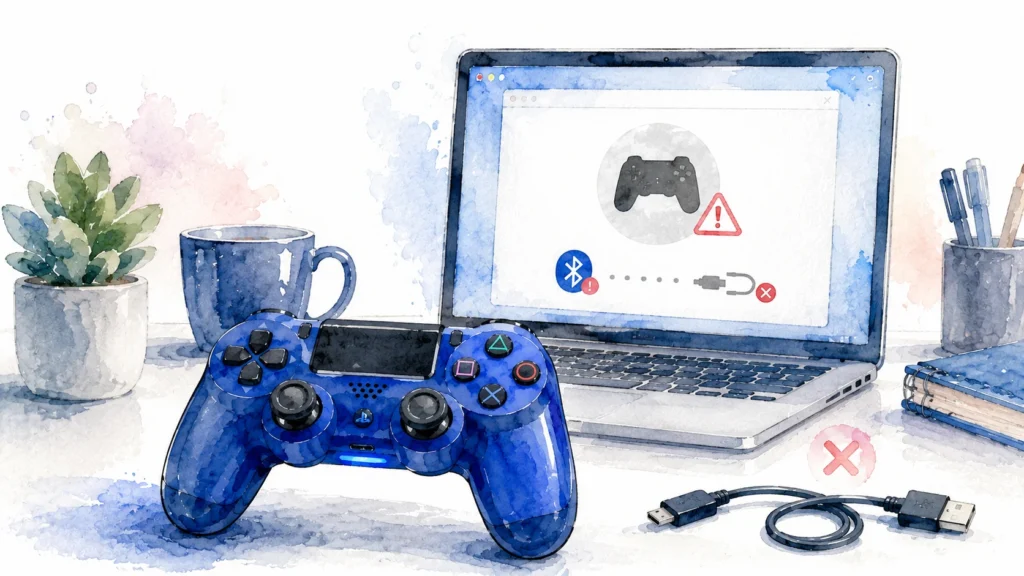
PS4 and PS5 controllers need a little more setup on Windows compared to Xbox controllers, since native support is not built in as deeply.
Steps That Solve Most PlayStation Controller Connection Problems
- Install Steam, even if you do not plan to use it for games, since it includes strong built in DualSense and DualShock support
- Open Steam Settings, then Controller, then General Controller Settings
- Check the box for PlayStation Configuration Support
- Restart Steam completely after enabling this
For non Steam use, especially in games that do not support PlayStation controllers directly, a translation tool that makes the PC see the controller as an Xbox style controller often solves compatibility problems, since far more PC games are built expecting Xbox style input.
| Connection Method | What It Solves |
|---|---|
| Steam PlayStation Configuration Support | General recognition and button mapping |
| DS4Windows style tool | Makes non Steam games see it as Xbox compatible input |
| Official USB cable | More reliable than generic cables for initial pairing |
Steam’s official controller guidance recommends checking Steam, operating-system and controller firmware updates before moving to deeper troubleshooting.
PlayStation also provides official DualSense pairing and support instructions.
Symptom: Nintendo Switch Pro Controller Not Working on PC
The Switch Pro Controller connects to PC fine in most modern games, but the setup steps differ slightly from PlayStation and Xbox pads.
- Connect through Bluetooth pairing mode as listed in the pairing table above, or use a USB-C cable directly
- Steam again offers the smoothest built in support, similar to PlayStation controllers
- Check that Steam’s generic gamepad configuration support is turned on in the same Controller settings menu mentioned earlier
- Some games require manually remapping since the Switch Pro Controller button layout differs slightly from Xbox layout, particularly the A and B button positions being swapped
A gamepad tester tool is especially useful here, since it lets you confirm exactly which physical button corresponds to which signal before you go looking for a game specific problem that might not even exist.
Nintendo’s official Pro Controller pairing instructions explain both USB and wireless pairing methods.
Using a Gamepad Tester to Diagnose Faster
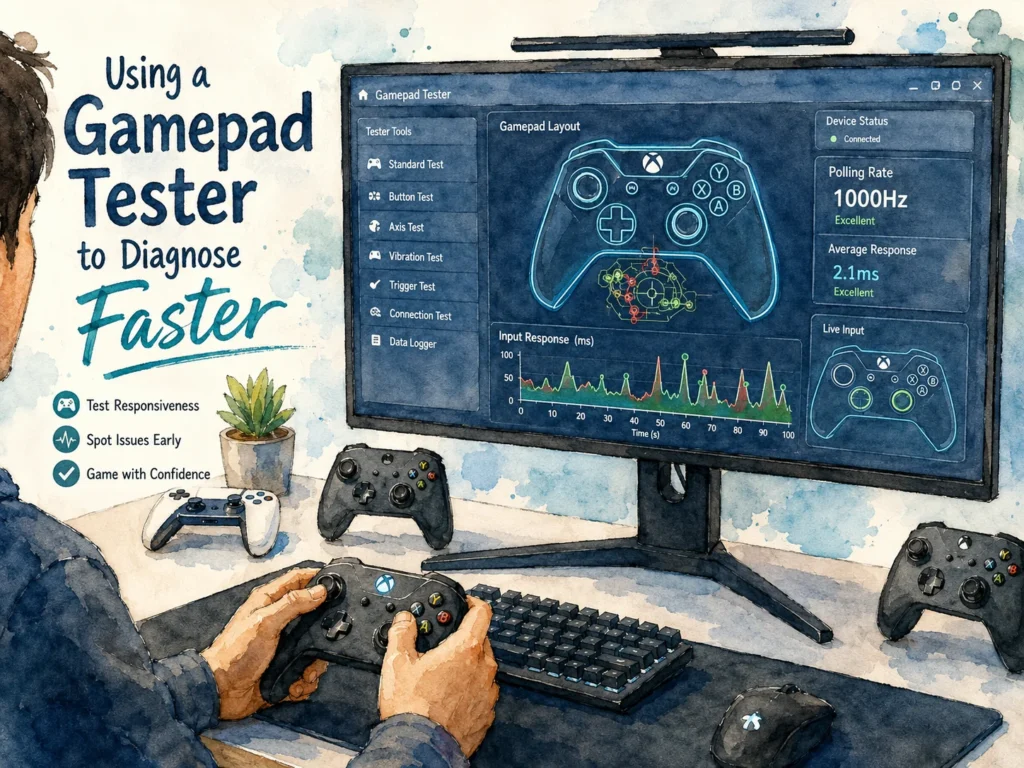
Before jumping between different possible fixes, testing with a dedicated tool saves enormous time by telling you exactly what part of the chain is broken.
A browser based gamepad tester shows:
- Whether the PC detects the controller at all
- Live movement of both analog sticks
- Every button press in real time
- Trigger pressure sensitivity if supported
- Connection type, wired or wireless, depending on the tool
How to Use One Properly
- Open the tester site in your browser
- Connect your controller using whichever method you are trying to fix
- Press every single button one at a time, checking that each one lights up or registers on screen
- Move both sticks in full circles and to each edge
- Pull both triggers fully and note if pressure sensitivity shows correctly
If everything shows correctly in the tester but a specific game still does not respond, the problem is isolated to that one game’s settings, not your hardware or Windows setup. This single step eliminates a huge amount of guesswork.
Common Mistakes People Make While Troubleshooting
A lot of wasted time comes from skipping basic checks and jumping straight to complicated fixes.
- Assuming the controller is broken before testing with a different cable first
- Reinstalling drivers repeatedly without ever checking if the cable itself was the actual problem
- Forgetting that some cables only charge and do not carry any data at all
- Not unplugging a wired connection before attempting a wireless Bluetooth pairing
- Ignoring Device Manager warning icons that would have pointed straight to the actual issue
- Blaming the game before confirming the controller works correctly in a neutral tester tool
- Pairing a controller to Bluetooth without removing the old paired entry first, causing duplicate confused connections
Quick Symptom to Fix Reference Table
| Symptom | First Thing to Try |
|---|---|
| No reaction at all when plugged in | Swap the USB cable |
| Detected but game does not see it | Check game specific input settings |
| Connects then disconnects repeatedly | Disable USB power saving in Device Manager |
| Specific buttons unresponsive | Test with a gamepad tester tool first |
| Works wired but not wireless | Unplug cable fully before pairing Bluetooth |
| Xbox controller specific issue | Update through Xbox Accessories app |
| PlayStation controller specific issue | Enable PlayStation Configuration Support in Steam |
| Switch Pro Controller specific issue | Use Steam generic gamepad support |
Preventing Future Connection Problems
A few habits keep connection issues from becoming a repeated headache.
- Keep one reliable data capable USB cable set aside specifically for controller use, labeled if needed so it does not get mixed up with charging only cables
- Update Windows and your controller’s companion app every few months rather than waiting until something breaks
- Avoid plugging controllers into front panel USB ports on desktop towers when possible, rear ports are usually more stable
- Fully charge wireless controllers regularly rather than letting the battery run completely flat repeatedly, which can sometimes affect Bluetooth pairing stability over time
- Remove old paired Bluetooth entries for controllers you no longer use regularly, keeping the device list clean
Frequently Asked Questions
Why Does My Controller Work on One PC but Not Another?
Ans: This usually points to a driver or Bluetooth hardware difference between the two machines, or one PC having an outdated Windows version compared to the other.
Does Using a USB Hub Cause Connection Problems?
Ans: Yes, sometimes. Cheap or unpowered hubs can fail to provide enough power for a controller, especially wireless dongles. Plugging directly into the PC solves this in most cases.
Can Antivirus Software Block a Controller From Connecting?
Ans: It is uncommon but not impossible, particularly with overly aggressive security software blocking driver installation. Temporarily disabling it during setup can help confirm if this is the cause.
Why Does My Controller Disconnect Only During Long Gaming Sessions?
Ans: This often points to overheating or a power management setting kicking in after a period of inactivity between button presses, especially during slower paced games.
Is It Better to Use Wired or Wireless for a More Stable Connection?
Ans: Wired connections are almost always more stable and have less input delay, so if you keep having wireless issues, a cable is a reliable fallback while troubleshooting.
Do All Controllers Need Special Software to Work With PC Games?
Ans: No, many work directly out of the box, especially Xbox controllers. PlayStation and Switch controllers benefit more from extra tools like Steam’s built in support for smoother compatibility.
Why Does My Controller Show Up in Windows but Not in Device Manager Under the Expected Category?
Ans: Some controllers appear under different categories like Human Interface Devices or Bluetooth instead of a dedicated gaming category, which is normal and does not mean anything is broken.