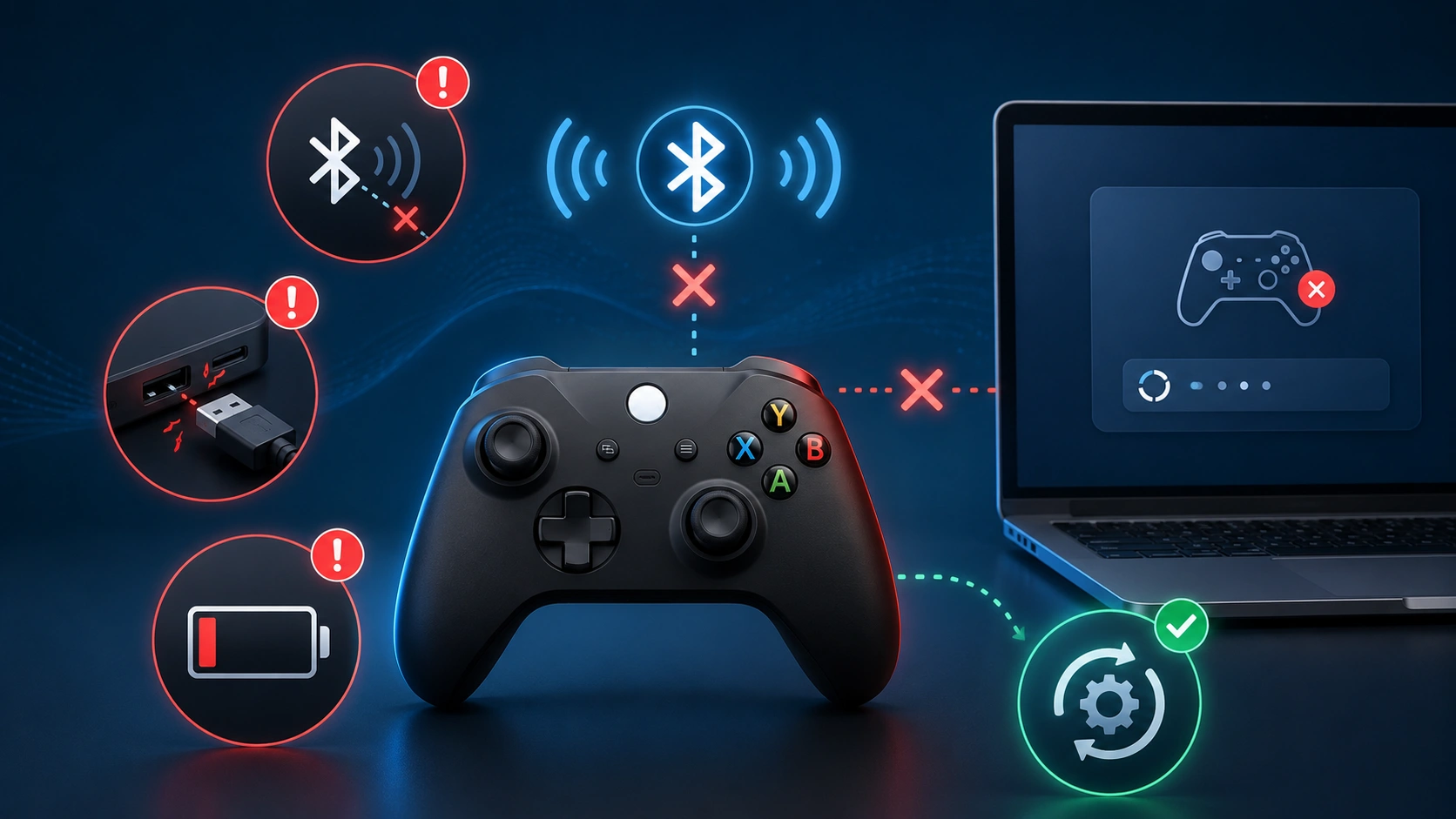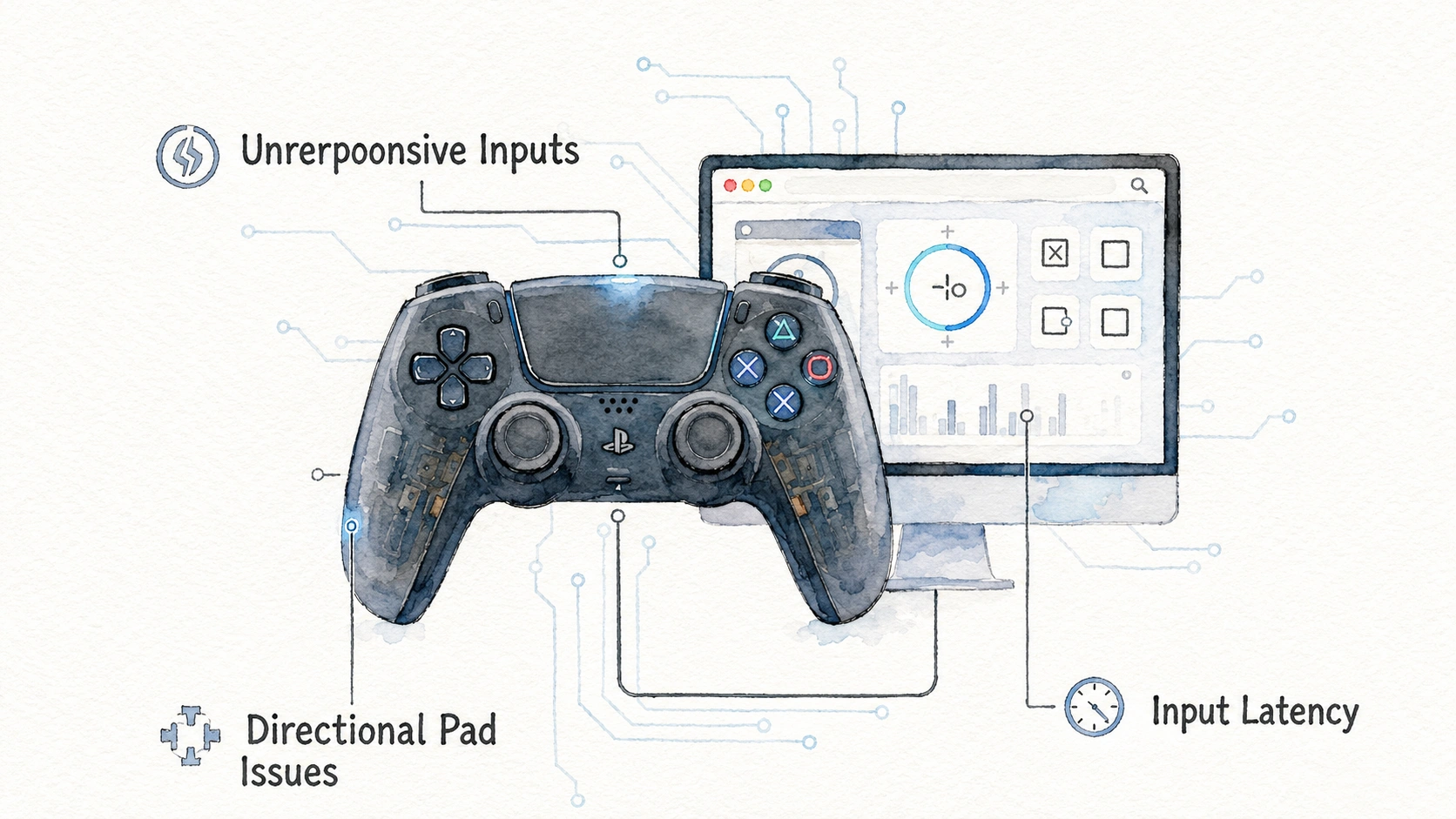
You just want to know if your controller actually works before you jump into a game and get frustrated halfway through a match. Maybe you bought a used controller and want to check it before trusting it. Maybe you think you have stick drift but you are not fully sure. Either way, testing a controller in your browser is the fastest and most honest way to get a real answer, and it costs absolutely nothing.
This guide walks through exactly how browser based how to test any controller on pc testing works, why it is more reliable than just judging by feel in a game, and how to read the results like someone who actually knows what they are looking at.
What Browser Controller Test Actually Does
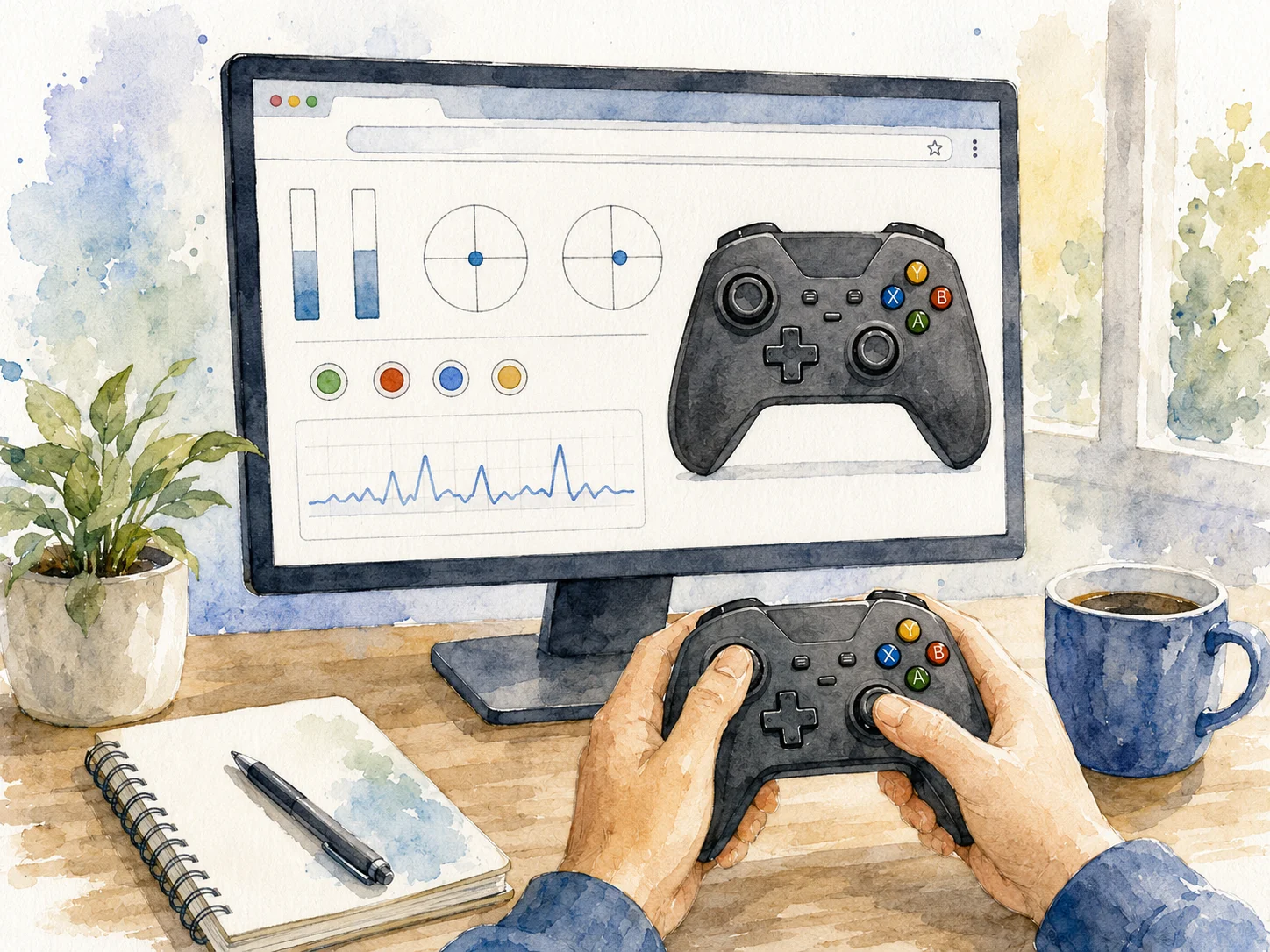
A browser based gamepad tester uses a built in web feature called the Gamepad API, which almost every modern browser supports. This lets a website read raw signals directly from your controller without needing you to install anything.
Here is the simple version of what happens behind the scenes:
| Step | What Happens |
|---|---|
| You plug in or pair the controller | Your operating system detects the hardware |
| You open the tester website | The page asks the browser for connected gamepad data |
| You press a button | The browser reports which button number was pressed and how hard |
| You move a stick | The browser reports the exact X and Y position as numbers |
| The website draws this on screen | You see live visual feedback matching your actual input |
This is different from just opening a game and seeing if your character moves. A game adds its own settings on top, like deadzones and custom button mapping, which can hide small problems. A raw tester shows you the truth underneath all of that.
Why Testing in a Browser Beats Testing In a Game
A lot of people just open their favorite game and wiggle the stick around to check if something feels off. This works sometimes, but it hides more than it reveals.
Reasons a Dedicated Tester Gives a Clearer Picture
- Games apply their own deadzone settings, which can mask small stick drift completely
- Games often remap buttons, so you might think a button is broken when it is actually just unbound in that specific game
- Games do not usually show you exact numeric values, just movement on screen, which makes small problems hard to notice
- A tester shows every input at once on one screen, rather than making you guess based on gameplay reactions
A repair technician I spoke with put it simply: testing a controller inside a game is like checking if your car’s brakes work by driving normally and hoping nothing goes wrong. A proper tester is like actually pressing the brake pedal on a lift and watching what the pads do.
Step by Step: How to Test Any Controller on PC in a Browser
This works the same basic way regardless of what controller you own or what website you use for testing.
Follow These Steps
- Connect your controller to your PC, either with a USB cable or through Bluetooth pairing.
- Open any modern browser, Chrome, Edge, and Firefox all support this feature.
- Go to a gamepad tester website.
- Press any button on your controller once, this is often required to “wake up” the browser’s detection, since browsers do not scan for controllers until you interact with one.
- Watch the screen, your controller should now appear listed, sometimes showing its exact model name.
- Move both sticks slowly in full circles.
- Press every single button one at a time, checking that each corresponding on screen element responds.
- Pull both triggers fully if your controller has analog triggers, checking for smooth pressure sensitivity rather than an on-off snap.
That first button press step trips people up constantly. If nothing shows up right after plugging in, do not panic, just press any button once and the page usually detects it immediately.
The browser may wait for a button press or axis movement before exposing a connected controller to the page as part of its normal gamepad connection behaviour.
Checking Your Analog Sticks Properly
The sticks are where most hidden problems live, especially drift, so give this section extra attention.
What to Look for During Stick Testing
- With your thumb completely off the stick, the on-screen dot should sit exactly in the center, not touching any edge
- Move the stick in a slow, full circle, the on-screen dot should trace a smooth, complete circle without jumping or skipping
- Push the stick fully to each of the eight main directions, checking that the dot reaches the true edge of the visible boundary
- Release the stick from any direction, the dot should snap back to dead center immediately, not drift back slowly or land slightly off-center
Here is a table to help interpret common stick test results:
| What You See | What It Means |
|---|---|
| Dot stays perfectly centered at rest | Stick is healthy |
| Dot drifts slowly in one direction at rest | Classic stick drift |
| Dot jumps or skips during circular movement | Possible dirt or contact wear |
| Dot does not reach full edge in one direction | Reduced range, often early wear |
| Dot returns off-center after release | Centering spring or contact issue |
If you own more than one controller, testing them side by side on the same tester page gives you an even clearer comparison, since you can immediately see if one behaves differently from a known good unit.
Checking Your Buttons the Right Way
Buttons seem simple, but they can fail in more ways than just “does not work at all.”
Things a Good Button Test Reveals
- A button that does not register at all, even with a firm press
- A button that registers but with a noticeable delay compared to others
- A button that registers a press but does not properly register the release, sometimes called a sticky input
- A button that fires twice from a single press, which shows up as a double count in some tester tools
Test every single button, not just the ones you use most in games. It is common for people to only discover a broken button months later simply because they rarely used it, like a D-pad direction or a less common shoulder button.
| Button Group | What to Check |
|---|---|
| Face buttons | Each one lights up individually, no double presses |
| Shoulder buttons and triggers | Smooth pressure detection, full range on analog triggers |
| D-pad | All four directions register cleanly, including diagonals if supported |
| Stick clicks | Pressing the stick down as a button works separately from stick movement |
| Menu and system buttons | Start, select, and any special buttons all respond |
Checking Trigger Sensitivity
Modern controllers, especially Xbox and PlayStation pads, use analog triggers, meaning they read how far you pull the trigger, not just whether it is pressed or not.
A proper tester shows this as a moving bar or percentage rather than a simple on-off indicator.
How to Check Trigger Sensitivity Properly
- Pull each trigger very slowly from fully released to fully pressed.
- Watch that the on-screen value increases smoothly, without sudden jumps.
- Release slowly and confirm the value decreases just as smoothly back to zero.
- Compare both triggers side by side, since one worn trigger can feel noticeably different from a healthy one.
If a trigger jumps straight from zero to maximum with no smooth range in between, that usually points to a worn or dirty trigger sensor, similar in cause to stick drift but affecting the trigger mechanism instead.
Testing Vibration and Rumble Features
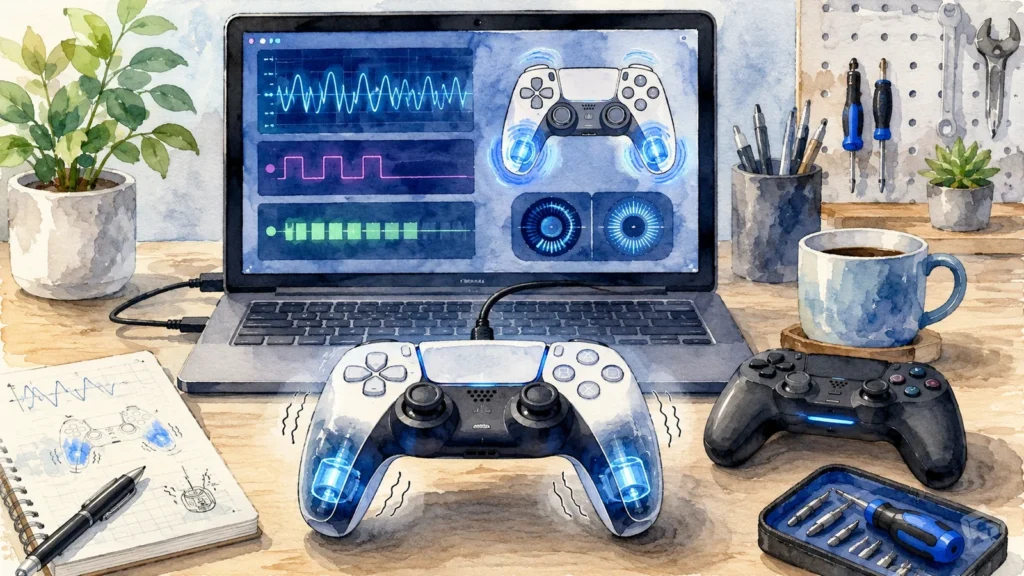
Not every browser tester supports vibration testing, since this depends on both the browser and the specific website’s coding, but many popular ones do include it.
Support for gamepad vibration and haptic features can vary between browsers, operating systems and controller models.
What to Check If Vibration Testing Is Available
- Both light and strong vibration motors trigger when tested, most controllers have two separate motors at different strengths
- Vibration feels even and consistent rather than weak or grinding sounding
- Vibration stops cleanly when the test ends, rather than continuing after it should have stopped
A grinding or rattling sound during vibration testing often signals a motor that is starting to wear out mechanically, which is worth knowing about before it fails completely during an important gaming moment.
Common Mistakes People Make While Browser Testing
A handful of small mistakes cause people to misread their results constantly.
- Forgetting to press any button first, then assuming the controller is broken when the browser just has not detected it yet
- Testing wireless controllers with a low battery, which can cause weak or inconsistent readings that look like hardware problems
- Not fully releasing the stick before judging centering, resting a thumb lightly on the stick can hide return-to-center issues
- Testing only the buttons used most often in games and skipping the rest entirely
- Assuming a slow browser page load means the controller failed, when really the page itself just needs a refresh
- Using an old or unsupported browser version that has weaker Gamepad API support
You can use the controller battery health check before testing a wireless controller to rule out a low or unstable battery.
Comparing Browser Testing to Other Testing Methods
Browser testing is not the only option out there, so here is how it stacks up.
| Method | Pros | Cons |
|---|---|---|
| Browser gamepad tester | Free, no install, works across most platforms | Needs a stable internet connection to load the page |
| Console built in test screen | Official, no extra tools needed | Usually less detailed, fewer diagnostic numbers shown |
| Downloadable PC software | Sometimes more advanced features like calibration | Requires installation, occasional compatibility issues |
| Just playing a game | Zero setup, immediate | Hides drift and small problems behind game settings |
For a quick honest check, a browser tester hits the best balance between convenience and accuracy for most people, which is exactly why so many gamers use one before troubleshooting anything else.
Testing Different Controller Types in a Browser
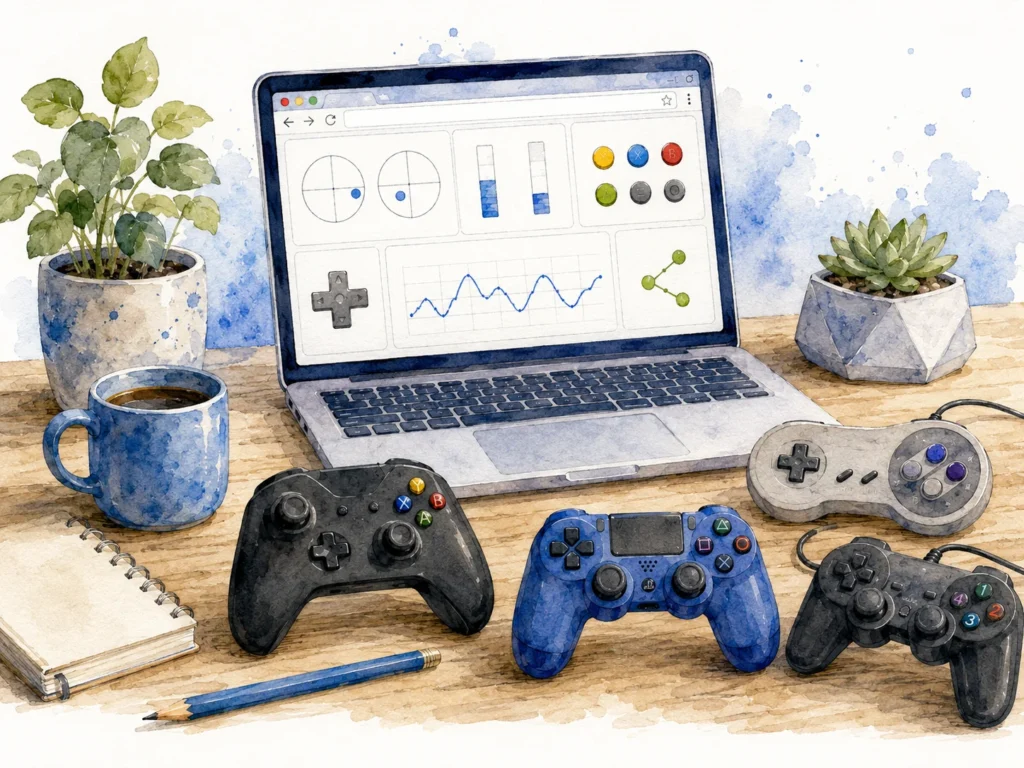
Most modern controllers work with browser testing, though small details differ slightly.
| Controller Type | Connection Method | Notes |
|---|---|---|
| Xbox Wireless Controller | USB cable or Xbox Wireless Adapter | Detected quickly, strong native support |
| PS5 DualSense | USB cable or Bluetooth | Some browsers show extra details like battery level |
| PS4 DualShock 4 | USB cable or Bluetooth | Very reliable detection across most browsers |
| Nintendo Switch Pro Controller | USB-C cable or Bluetooth | Button numbering may differ slightly from Xbox layout |
| Generic third party gamepads | Usually USB only | Detection quality varies more than official controllers |
If a generic or off brand controller does not get detected properly, try a different USB port first, since some cheaper controllers are more sensitive to power delivery differences between ports than official ones are.
The underlying web standard defines common controller buttons and axes, although exact mappings can still differ between devices. You can review the technical Gamepad specification for more detail.
When Browser Testing Shows a Problem, What to Do Next
Finding a problem is only the first half. Knowing what to do with that information matters just as much.
- If a stick shows drift, try cleaning around the base with compressed air first, since that fixes a large share of minor cases
- If a button does not register at all, check for physical damage or debris stuck under that specific button before assuming it needs full repair
- If triggers jump instead of moving smoothly, the same cleaning approach used for stick drift often helps here too
- If vibration sounds rough, this usually points toward a motor nearing the end of its lifespan, worth planning a replacement or repair around
Testing regularly, maybe once every couple of months, helps you catch small problems early, before they turn into the kind of drift or button failure that actually ruins a match.
Frequently Asked Questions
Do I Need to Install Anything to Test My Controller in a Browser?
Ans: No, that is the entire point. The Gamepad API built into modern browsers reads your controller directly through the webpage, no download required.
Does Browser Testing Work With Bluetooth Controllers?
Ans: Yes, as long as your controller is properly paired with your PC through Windows Bluetooth settings first, the browser test works the same way as with a wired connection.
Why Does My Controller Not Show Up at All in the Tester?
Ans: Press any button once after connecting, browsers typically wait for an actual input signal before they start displaying a connected gamepad.
Can I Test Two Controllers at the Same Time?
Ans: Yes, most gamepad tester tools support multiple controllers connected at once, showing each one in its own separate section on the page.
Is Browser Testing Accurate Enough to Diagnose Stick Drift?
Ans: Yes, it is actually one of the more reliable ways to check, since it shows raw numeric stick position without any game settings hiding small movement.
Does This Work on Mac and Linux, or Just Windows?
Ans: The Gamepad API is a browser feature, not an operating system feature, so it works the same way across Windows, Mac, and Linux, as long as you use a supported browser.
Will Testing My Controller in a Browser Drain the Battery Faster?
Ans: No more than normal use. Reading input signals through a browser does not use any more power than the controller would use during regular gameplay.