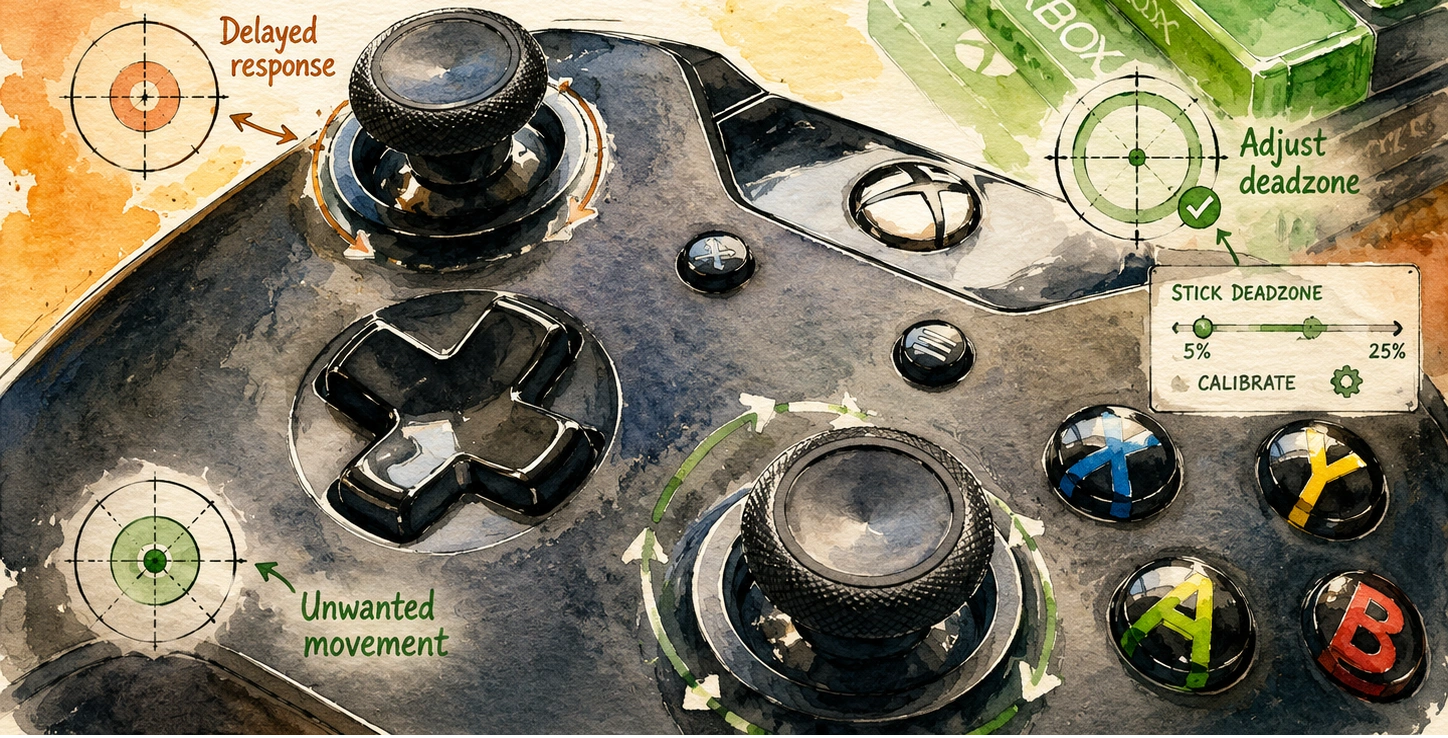
Your character walks slightly on its own even though you swear your thumb is centered. Or maybe small careful movements just do not register at all, and everything feels like it snaps straight to full speed. Both of these problems often trace back to controller deadzone, one of the most misunderstood settings in gaming. Get it wrong and your controller either feels twitchy or numb. Get it right and small movements feel natural again.
This guide explains exactly what deadzone is, why every controller needs some amount of it, and how to fix a badly set one on PC, console, and inside specific games.
What Deadzone Actually Means
Deadzone is a small area around the center of your analog stick where the game intentionally ignores tiny amounts of movement. This exists on purpose, not as a flaw, since analog sticks are mechanical parts that rarely sit at a perfectly exact zero position all the time.
Think of it like the play in a car’s steering wheel before the wheels actually start turning. A small amount of looseness at dead center is normal and expected, and without it, the smallest bump or vibration in the road would send the car swerving constantly.
| Term | Simple Explanation |
|---|---|
| Deadzone | The small area near center where input gets ignored on purpose |
| Stick range | The full area from center to the outer edge the stick can move through |
| Sensitivity curve | How stick movement translates into in-game action speed or intensity |
Every analog stick needs at least a small deadzone, since even a brand new, perfectly healthy stick will show tiny fluctuations at rest due to normal manufacturing tolerances.
Why Deadzone Exists in the First Place
Without any deadzone at all, a game would treat every tiny, unintentional twitch as a real command. This would make aiming and movement feel jumpy and unpredictable, even for a controller in perfect condition.
Reasons deadzone matters:
- Analog sticks have small manufacturing tolerances that cause minor readings even at rest
- Human hands naturally shake or shift slightly, even when trying to hold perfectly still
- Cheap or aging components produce more of this natural noise than brand new premium ones
- Games need a stable resting state to avoid characters drifting or cameras jittering constantly
| Scenario Without Deadzone | Result |
|---|---|
| Resting hand slightly trembles | Character or camera moves unintentionally |
| Small manufacturing variation in the stick | Game reads tiny false movement as real input |
| Aging stick with early wear | Small phantom signals get treated as intentional movement |
The Difference Between Deadzone and Stick Drift
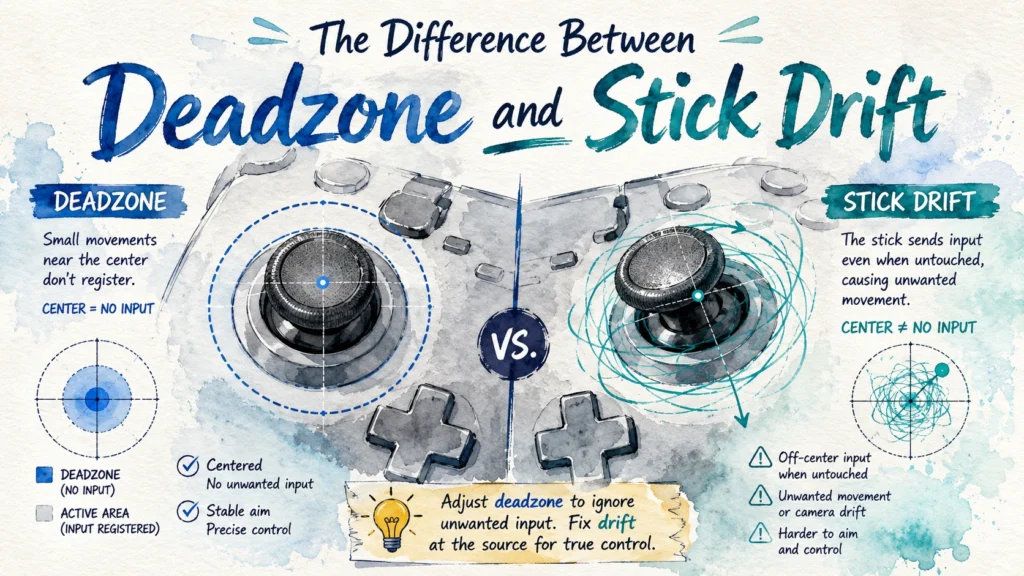
People often confuse these two ideas, but they are genuinely different problems, even though they can look similar on the surface.
| Feature | Deadzone | Stick Drift |
|---|---|---|
| What it is | A setting that ignores small input near center | An actual hardware problem sending false signals |
| Can be adjusted in software | Yes | No, only reduced or masked, not fixed |
| Fixes the underlying cause | Not applicable, it is a setting, not a problem | Requires cleaning or repair to actually fix |
| Appears even on a healthy controller | Yes, always present to some degree | No, only appears when something is worn or dirty |
Increasing deadzone can sometimes hide mild drift symptoms, since the game simply ignores more of the area where the false signal occurs, but this does not repair the actual stick. It is a workaround, not a cure.
How to Tell If Your Deadzone Is Set Wrong
Certain feelings during gameplay point directly to a deadzone problem rather than something else.
Signs Your Deadzone Might Be Too Small
- Your character or camera moves slightly even when your thumb feels completely still
- Precision aiming feels jumpy, reacting to movements you did not mean to make
- The game feels overly sensitive right near the resting position specifically
Signs Your Deadzone Might Be Too Large
- Small, careful movements do not register at all until you push further than expected
- Aiming feels sluggish or delayed, like there is a gap before anything happens
- Precise, slow movements are impossible, everything feels like it jumps straight to a bigger action
| Symptom | Likely Deadzone Problem |
|---|---|
| Movement happens with stick untouched | Too small, or actual drift is present |
| Small precise movements ignored | Too large |
| Sudden jumps from no movement to full movement | Too large, missing the smooth in-between range |
| Camera constantly jittery at rest | Too small |
Testing Your Current Deadzone Setting
Before changing anything, it helps to actually see what your controller and current settings are doing using a proper testing tool rather than guessing based on gameplay feel.
Steps to Check
- Connect your controller to a PC and open a browser based gamepad tester.
- Leave the stick completely untouched and watch for any movement on the on-screen indicator.
- Very slowly push the stick a tiny amount in one direction and watch exactly how far you need to push before the on-screen indicator starts moving.
- Repeat in a few different directions to check consistency.
| What You Observe | What It Suggests |
|---|---|
| Indicator moves the instant you touch the stick, even slightly | Small or minimal deadzone currently applied |
| Indicator requires a noticeable push before responding at all | Larger deadzone currently applied |
| Indicator moves on its own with no touch at all | This points to stick drift, not deadzone, and needs a different fix entirely |
This simple test gives you a real baseline before adjusting any settings, so you know exactly what you are starting from and can judge whether your changes actually helped.
Adjusting Deadzone in Windows
Windows itself has some basic tools for viewing and slightly adjusting how controller input gets handled, though this is more limited compared to what Steam or individual games offer.
Steps to Check Through Windows
- Press the Windows key and type Set up USB game controllers.
- Open the result and select your controller.
- Click Properties to view the current test screen showing stick position.
This built in Windows tool mostly shows you the current behavior rather than offering deep deadzone customization, so for actual adjustment, Steam or individual game settings usually provide more control.
Adjusting Deadzone Through Steam
Steam offers one of the more flexible and detailed deadzone adjustment tools available on PC, working across almost any game launched through the platform.
Steps to Adjust Deadzone in Steam
- Open Steam and go to Settings.
- Select Controller, then General Controller Settings.
- Make sure the appropriate configuration support box is checked for your specific controller type.
- Click on your controller’s icon once it appears.
- Look for a deadzone slider within the stick configuration screen.
- Adjust the slider gradually while testing movement using the live visual feedback shown on screen.
| Steam Deadzone Feature | Why It Helps |
|---|---|
| Live visual feedback | See the exact effect of each adjustment immediately |
| Per-stick adjustment | Set left and right stick deadzones independently if needed |
| Saved per controller profile | Settings apply specifically to that controller going forward |
| Works across most Steam games | Broad compatibility without needing per-game changes |
A good approach is making small adjustments, testing briefly in an actual game, then returning to fine tune further rather than making one large change and hoping it feels right immediately.
Adjusting Deadzone Inside Individual Games
Many games, especially competitive shooters and racing games, include their own separate deadzone settings that apply on top of or instead of system level settings.
Steps to Find and Adjust This
- Open the game’s settings or options menu.
- Look under Controls, Input, or Gamepad specific sections.
- Search for terms like “Stick Deadzone,” “Analog Deadzone,” or sometimes “Trigger Deadzone” for a separate trigger specific setting.
- Adjust in small increments, testing immediately after each change.
| Game Genre | Typical Deadzone Sensitivity |
|---|---|
| Competitive shooters | Often allow very fine adjustment, since precision matters heavily |
| Racing games | Usually offer separate steering deadzone controls |
| Platformers | Deadzone matters less, movement is often more forgiving by design |
| Fighting games | Precise timing matters more than deadzone specifically in most cases |
Testing each small adjustment immediately in actual gameplay, rather than changing several settings at once, makes it much easier to identify exactly which change produced the improvement or made things worse.
Finding Your Ideal Deadzone Setting
There is no single perfect number that works for everyone, since it depends on your specific controller’s condition, your hand steadiness, and the type of game you are playing.
A Practical Approach for Finding Your Ideal Setting
- Start with your controller or game’s default deadzone setting as a baseline.
- If you notice unwanted movement at rest, increase the deadzone slightly, testing after each small increase.
- If small precise movements feel ignored, decrease the deadzone slightly instead, testing after each small decrease.
- Stop adjusting once movement at rest is fully ignored but small intentional movements still register clearly.
| Deadzone Level | General Feel |
|---|---|
| Very small | Highly responsive, but may pick up unwanted small movements |
| Moderate | Balanced responsiveness with unwanted noise filtered out |
| Large | Very stable at rest, but small precise movements get lost |
A hardware reviewer who tests controller settings extensively noted that most players find a comfortable middle ground surprisingly quickly once they actually test with a visual tool, rather than guessing through trial and error purely by feel during gameplay.
Common Mistakes People Make With Deadzone Settings
Several small errors lead to a deadzone setting that never quite feels right.
- Setting deadzone extremely high just to mask actual stick drift, rather than fixing the real cause underneath
- Changing multiple settings at once, making it hard to tell which specific adjustment actually helped
- Copying someone else’s exact deadzone number online, when their controller’s condition and hands may be completely different from yours
- Forgetting that some games apply their own additional deadzone layer even after adjusting system level settings
- Not retesting after adjusting, and simply assuming a change worked without confirming with an actual visual tool
Deadzone Versus Sensitivity: Do Not Confuse These Two
Deadzone and sensitivity are related but control different things, and adjusting the wrong one will not solve your actual problem.
| Setting | What It Controls |
|---|---|
| Deadzone | How much movement near center gets ignored entirely |
| Sensitivity | How fast in-game action responds once movement is registered |
If your problem is unwanted movement while the stick is untouched, deadzone is the correct setting to adjust. If your problem is that movement feels too fast or too slow once you are actually moving the stick, sensitivity is the setting you actually want to change instead.
| Symptom | Correct Setting to Adjust |
|---|---|
| Camera moves on its own at rest | Deadzone |
| Camera feels too fast or too slow during actual movement | Sensitivity |
| Small careful movements are ignored | Deadzone, possibly too large |
| Aiming overshoots targets constantly | Sensitivity, possibly too high |
When Deadzone Adjustment Will Not Fully Solve Your Problem
It helps to know the honest limits of what a deadzone change can actually fix, so you do not spend excessive time adjusting a setting that will never fully resolve the real issue.
Signs the Real Problem Is Hardware, Not Deadzone
- The stick still shows noticeable movement at rest even after raising deadzone significantly
- You hear grinding or feel resistance when moving the stick physically
- The problem has clearly gotten worse over the weeks or months rather than staying consistent
- Cleaning the stick with compressed air noticeably reduces the unwanted movement
| Situation | Better Next Step |
|---|---|
| Deadzone raised significantly but drift still visible | Clean the stick or consider repair |
| Physical resistance or grinding felt during movement | Likely mechanical wear, not a settings issue |
| Problem worsening steadily over time | Hardware wear, deadzone is only a temporary mask |
| Problem appeared suddenly after a drop or spill | Physical damage, deadzone will not help |
Think of deadzone as a tool for fine-tuning an already healthy controller, not a permanent fix for a controller with real physical wear or damage.
A Simple Table Summary of Deadzone Fixes by Platform
| Platform | Where to Adjust | Level of Control |
|---|---|---|
| Windows built in tool | Set up USB game controllers menu | Basic, mostly viewing rather than adjusting |
| Steam | Controller settings, General Controller Settings | Detailed, with live visual feedback |
| Individual PC games | In-game Controls or Input settings menu | Varies widely by game |
| Consoles | Usually limited to system wide sensitivity, less granular deadzone control | Basic |
Frequently Asked Questions
Is Zero Deadzone Ever a Good Idea?
Almost never, since even a brand new healthy controller has small natural fluctuations at rest that need some amount of deadzone to avoid unwanted movement.
Can Adjusting Deadzone Fix Stick Drift Completely?
No, it can mask mild drift by ignoring the affected range near center, but it does not repair the actual worn or dirty part causing the drift in the first place.
Why Does the Same Deadzone Setting Feel Different in Two Different Games?
Some games apply their own additional deadzone processing on top of system level settings, so the same number can produce a noticeably different feel depending on how that specific game handles input internally.
Does a Higher Quality Controller Need Less Deadzone?
Generally yes, since higher quality sticks tend to have less natural noise at rest, meaning a smaller deadzone setting can often be used without unwanted movement appearing.
Should I Use the Same Deadzone Setting for Every Game I Play?
Not necessarily. Fast paced competitive shooters often benefit from careful fine-tuning, while more relaxed single player games are usually forgiving enough that default settings work fine without much adjustment.
Can Deadzone Settings Affect Trigger Behavior Too?
Yes, many games include a separate trigger deadzone setting, which works the same basic way as stick deadzone but applies specifically to how much trigger pull is needed before an action registers.
Will Professional or Competitive Players Use a Different Deadzone Approach Than Casual Players?
Often yes, competitive players tend to fine-tune deadzone very precisely to maximize responsiveness without introducing unwanted noise, while casual players are usually fine relying on sensible default settings without much manual adjustment.