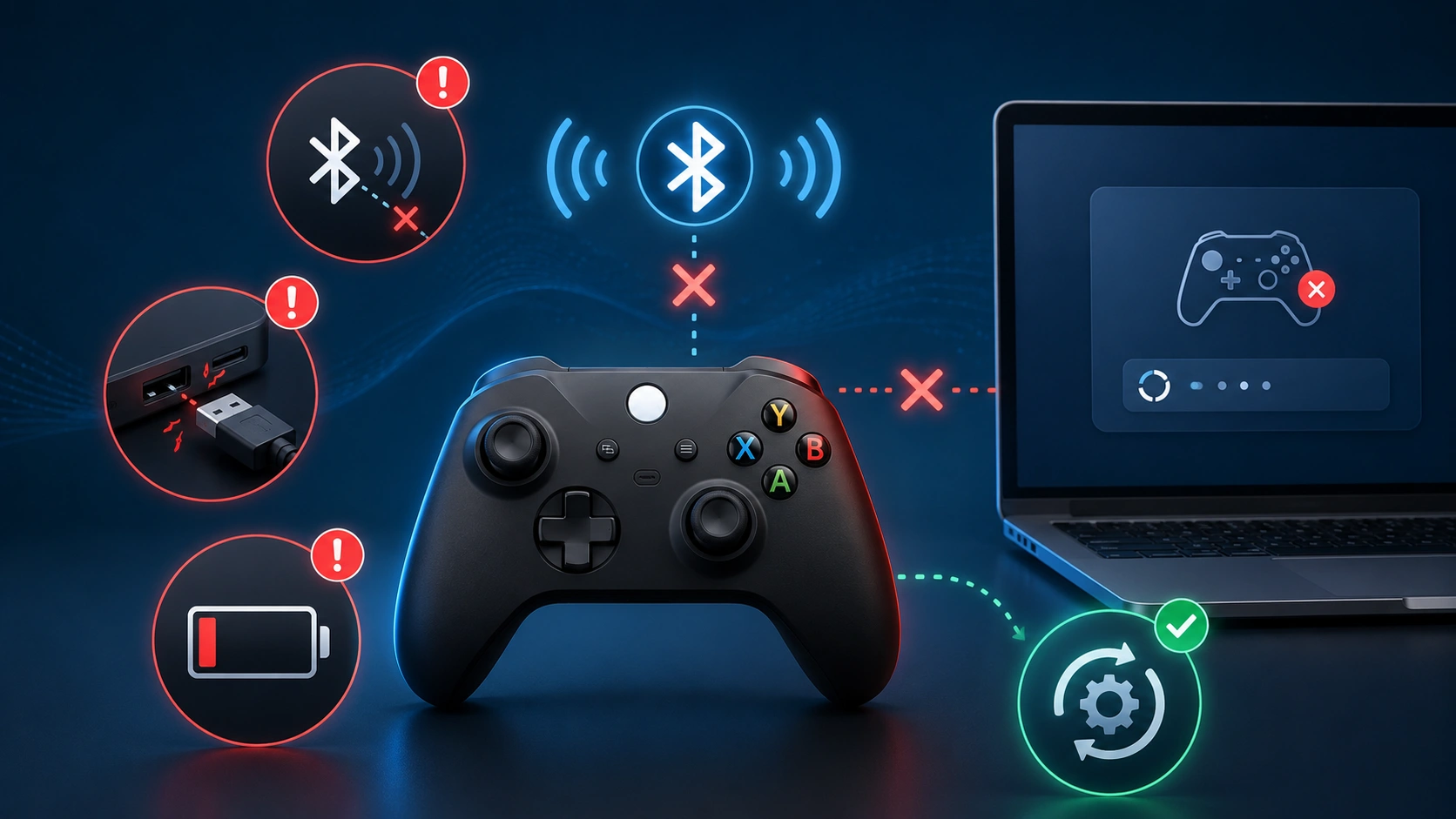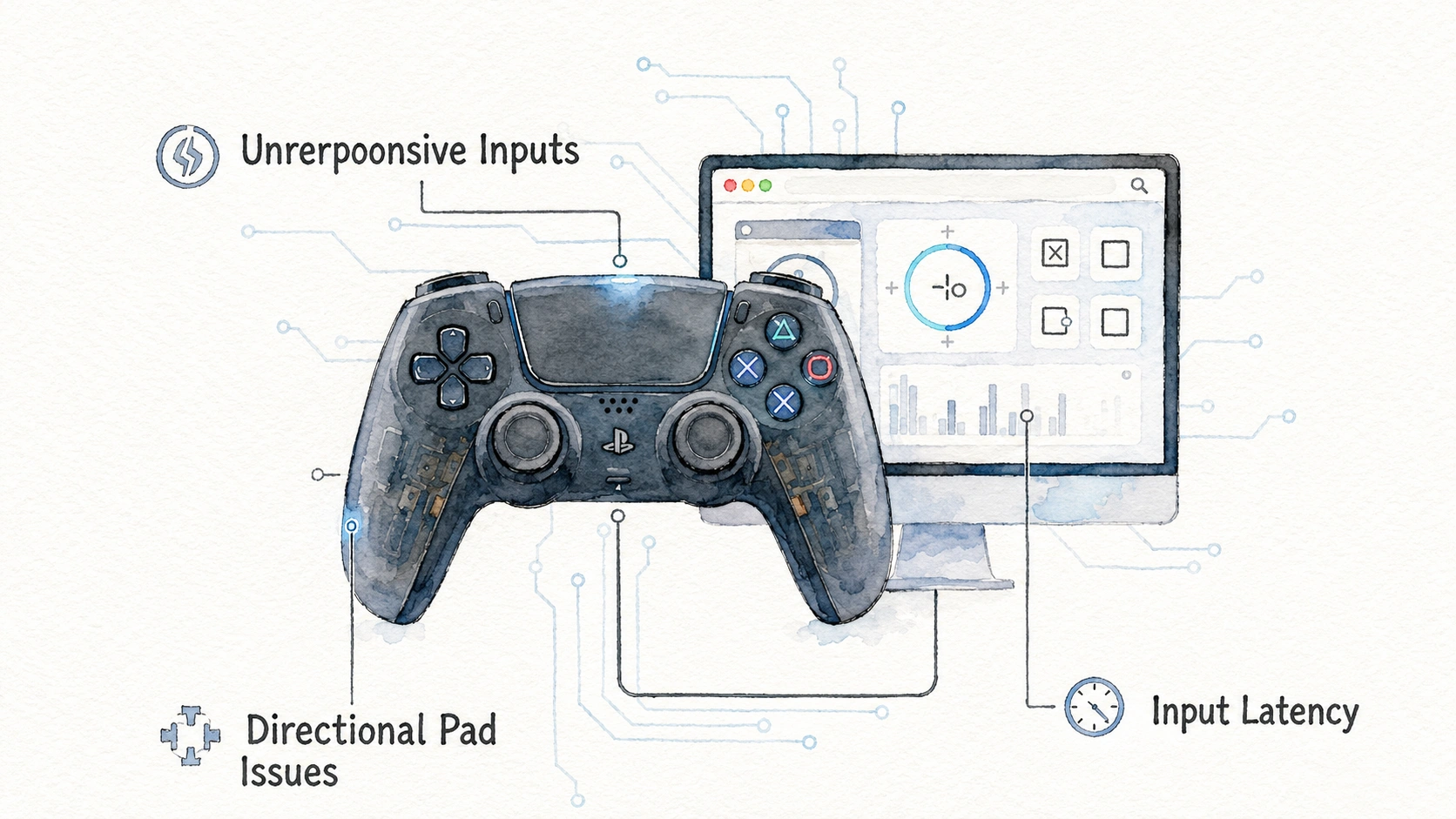
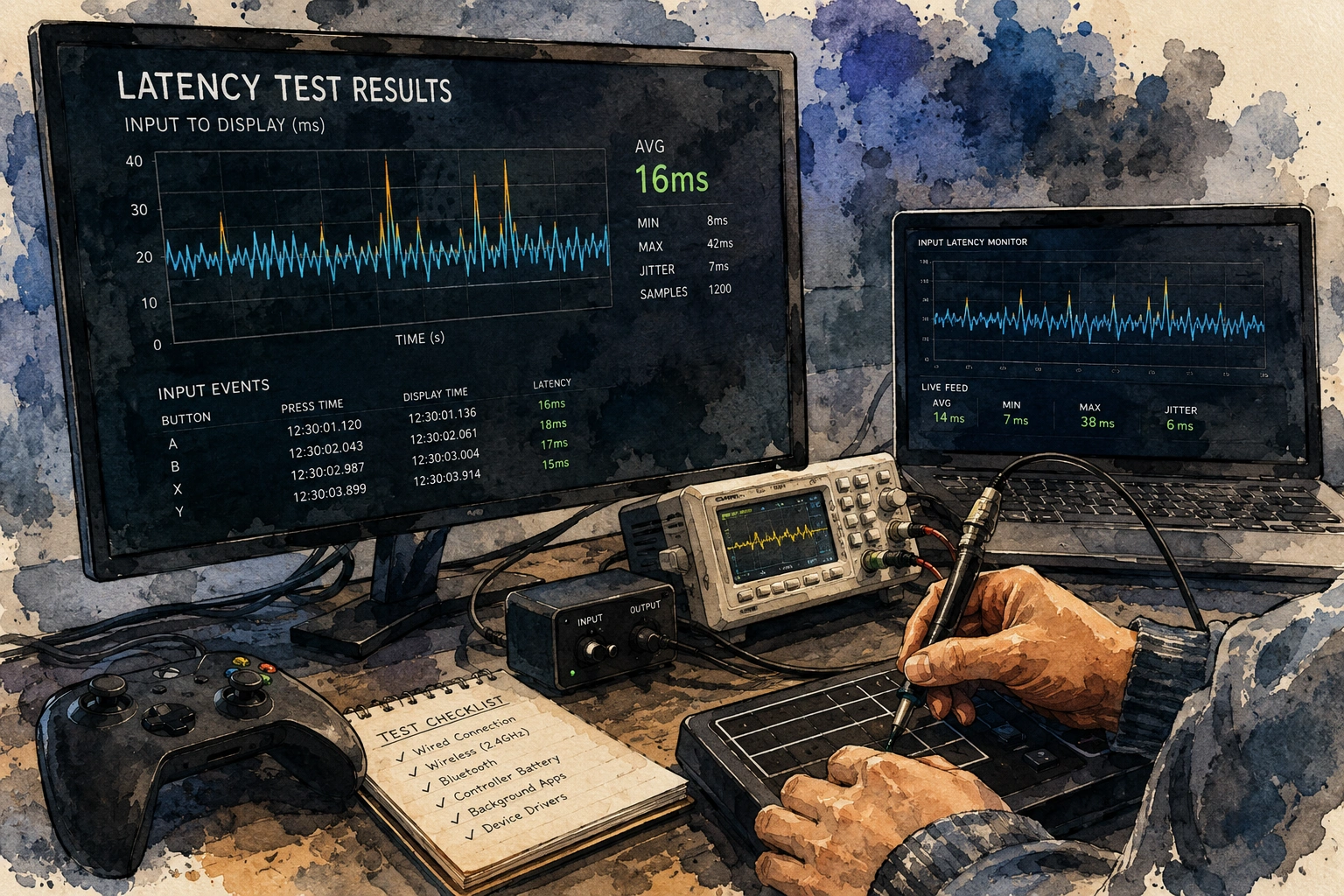
You press a button and something in your gut says it took just a little too long to show up on screen. Maybe you missed a jump you know you should have made, or your shot fired half a second after you pulled the trigger. This feeling is not always in your head, and there are real ways to measure exactly how much delay exists between your hand and the game.
This guide walks through practical methods to test controller latency and input lag on PC, using tools that range from completely free to slightly more advanced, so you can find out exactly where your setup stands and what to do about it.
What Input Lag Actually Means
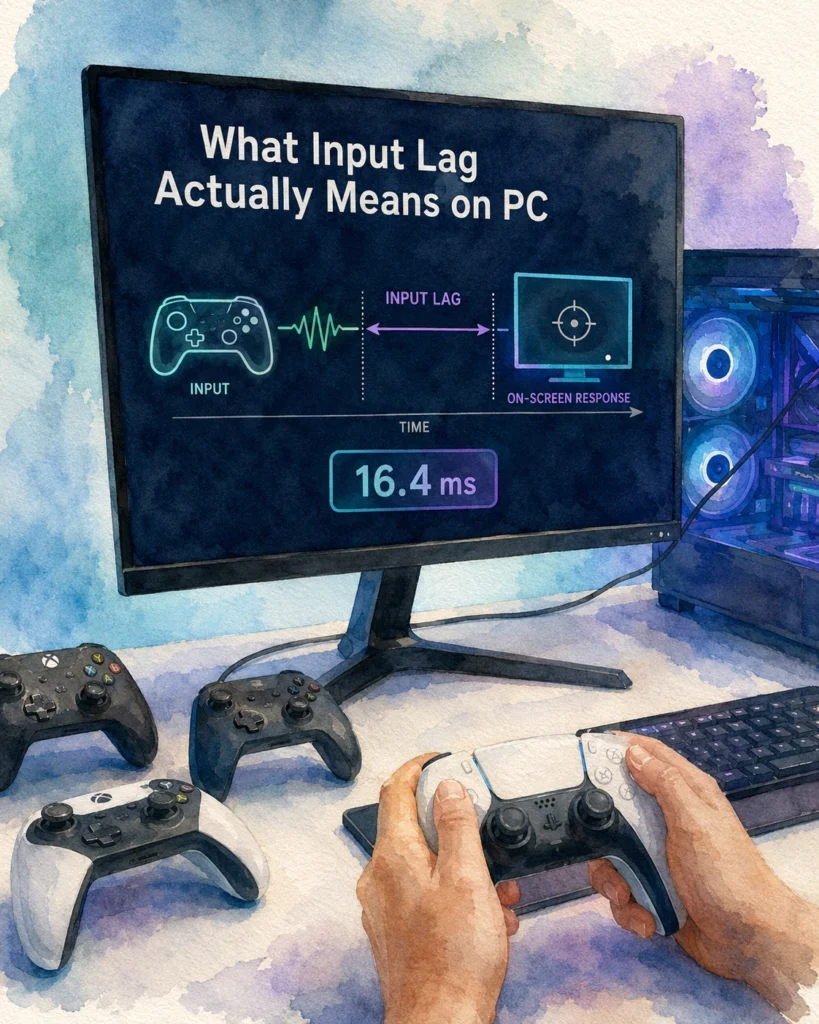
Input lag is the total time between the moment you physically press a button or move a stick and the moment that action shows up on your screen. This delay is made of several small pieces stacked together, not just one single thing.
Here is a simple breakdown of where delay actually comes from:
| Source of Delay | What Causes It |
|---|---|
| Controller polling | How often the controller reports its status to the PC |
| Connection type | Wired is generally faster than Bluetooth or wireless dongles |
| USB processing | Small delay while the operating system reads the signal |
| Game engine processing | The game itself takes time to react to the input |
| Frame rendering | The new frame has to be drawn and sent to the display |
| Monitor response time | The screen itself takes time to actually show the new image |
Every one of these adds a small amount of time, usually measured in milliseconds, and they all stack together into what you actually feel as lag.
A hardware tester who reviews gaming peripherals for a living once told me that people blame the controller for lag way more often than they should, when in many cases the monitor or the game engine itself is the bigger offender. Testing properly is the only way to know which part is actually the problem.
Why This Matters More in Certain Games
Not every game needs razor sharp response times to feel good, so it helps to know when input lag actually matters for your specific situation.
| Game Type | How Much Input Lag Matters |
|---|---|
| Competitive shooters | Matters a lot, even small delays affect aim and reaction timing |
| Fighting games | Matters a lot, frame perfect timing is often required |
| Rhythm games | Matters a lot, timing windows can be extremely tight |
| Racing games | Matters a moderate amount, steering feel is affected |
| Story driven single player games | Matters very little, delays are rarely noticeable |
| Turn based strategy games | Barely matters at all |
If you mainly play slower paced or turn based games, chasing the lowest possible input lag is honestly not worth obsessing over. If you play competitive shooters or fighting games seriously, it becomes genuinely important.
Method One: Using a Gamepad Tester With Timestamp Data
The simplest starting point is a browser based gamepad tester, since many of these tools show exact timestamps for when a button press was detected by the browser.
The browser reads connected controllers through the Gamepad API, which provides access to button presses, stick positions and controller information.
Steps to Use This Method
- Open a gamepad tester website in your browser.
- Connect your controller using the connection method you want to test, wired or wireless.
- Press a button and watch for any displayed timestamp or millisecond counter.
- Repeat the press multiple times, noting the numbers each time.
- Compare wired versus wireless results using the same controller.
The Gamepad timestamp property represents the most recent time the browser received updated controller data.
This does not measure the full chain all the way to your monitor, but it does isolate the delay between your physical press and the browser detecting it, which is a big and important piece of the whole picture.
| What You Are Measuring Here | What You Are Not Measuring |
|---|---|
| Controller to PC detection delay | Game engine processing time |
| Connection method differences | Monitor response time |
| Polling consistency over multiple presses | Actual on-screen visual delay |
Method Two: The Camera and Slow Motion Phone Trick
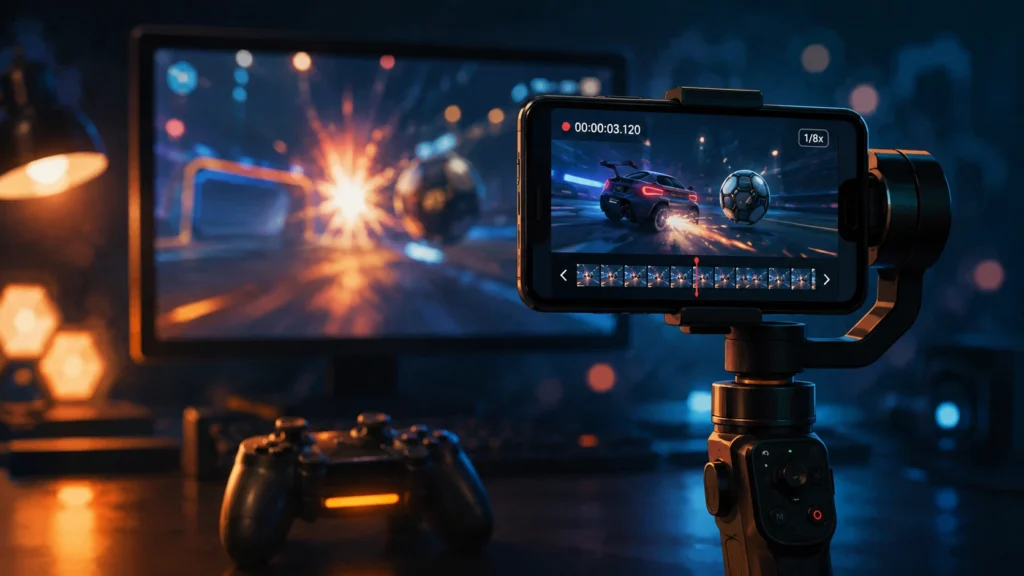
This method feels a bit old school, but it genuinely works and does not require any special software at all, just a smartphone capable of recording slow motion video.
What You Need
| Item | Purpose |
|---|---|
| Smartphone with slow motion recording | Capturing the exact moment of button press and screen reaction |
| Tripod or stable surface | Keeping the camera steady during recording |
| A simple test game or program | Something with an obvious visual reaction to input, like a button that changes color instantly |
Steps to Follow
- Set your phone to record at the highest slow motion frame rate available, many phones support 240 frames per second or higher.
- Position the camera so both your hand on the controller and the screen are visible in the same shot.
- Start recording, then press the test button.
- Play the recording back frame by frame.
- Count the number of frames between the visible button press and the visible screen reaction.
- Divide that frame count by your recording frame rate to get the actual delay in seconds.
For example, if you counted twelve frames of delay at 240 frames per second, that works out to fifty milliseconds of total delay, covering the entire chain from your hand all the way to the pixels changing on screen.
This method is more work than a software tool, but it captures the true end to end delay, including your monitor, which many pure software methods cannot measure at all.
Method Three: Built In Game Input Lag Testers
A growing number of PC games now include their own input lag testing tools directly in the settings menu, especially competitive titles that care about this issue seriously.
What These Usually Show You
- A visual indicator showing exact milliseconds from input to on-screen reaction
- Sometimes a breakdown separating game processing time from raw input detection time
- The ability to test different connection types, like wired versus wireless, directly within the same tool
Steps to Check If Your Game Has This
- Open the game’s settings or options menu.
- Look under sections labelled Display, Input, or sometimes a separate Diagnostics tab.
- Search specifically for terms like “input lag test” or “latency test.”
- Run the built in test multiple times and note the average result.
If your favorite competitive game includes this feature, it is honestly one of the most convenient and accurate ways to test, since it accounts for that specific game’s own processing overhead rather than a generic estimate.
Method Four: Dedicated Latency Testing Software

Beyond browser tools and built in game testers, some dedicated PC programs exist specifically to measure controller and input latency in detail.
What These Tools Typically Offer
| Feature | Why It Helps |
|---|---|
| Millisecond precision timing | More accurate than manual frame counting |
| Multiple test repetitions with averaging | Reduces the effect of one lucky or unlucky test run |
| Separate wired versus wireless comparison | Shows exactly how much delay Bluetooth adds versus USB |
| Historical logging | Lets you track if latency changes after driver updates |
Steps to Use Software Like This Generally
- Download the tool from a trusted source and install it.
- Connect your controller the way you normally play, wired or wireless.
- Run the built in test sequence, usually involving pressing a button repeatedly when prompted.
- Review the average result along with the range between your fastest and slowest recorded presses.
- Repeat with a different connection method if you want a direct comparison.
A wide range between your fastest and slowest test results can actually be just as important as the average number itself, since it points to inconsistency, which often feels worse in actual gameplay than a slightly higher but steady delay.
Comparing Wired Versus Wireless Latency
This is one of the most common questions people have, and the honest answer depends on the specific technology involved, not just wired versus wireless as a blanket rule.
| Connection Type | Typical Latency Behavior |
|---|---|
| USB wired | Generally lowest and most consistent delay |
| Proprietary wireless dongle | Often close to wired performance, sometimes nearly identical |
| Standard Bluetooth | Usually has noticeably higher delay than wired or dongle options |
| Bluetooth Low Energy | Can vary a lot depending on implementation, sometimes worse than standard Bluetooth |
If you have ever felt like your wireless controller feels slightly less responsive than a wired one, that feeling is often accurate, particularly with standard Bluetooth connections compared to a dedicated wireless dongle or a straight USB cable.
Common Mistakes People Make When Testing Latency
A handful of small errors make test results unreliable without people realizing it.
- Testing only once and assuming that single result represents true performance, when a range of tests gives a much more honest picture
- Forgetting to fully charge a wireless controller before testing, since low battery can affect wireless signal consistency
- Testing near other wireless devices that create interference, especially other Bluetooth gadgets or busy Wi-Fi networks
- Comparing results from two completely different testing methods and assuming the numbers should match exactly
- Not accounting for background programs running on the PC that could be using processing power during the test
- Assuming the controller itself is the entire problem before checking monitor response time separately
You can use the controller battery health check before wireless testing to make sure battery condition is not affecting your results.
What Counts as Good Latency for Different Play Styles
There is no single universal number that applies to everyone, since acceptable latency really depends on what you are playing and how competitively you play it.
| Total End to End Latency | How It Generally Feels |
|---|---|
| Under 20 milliseconds | Feels essentially instant to almost everyone |
| Twenty to forty milliseconds | Feels responsive for the large majority of players |
| Forty to seventy milliseconds | Noticeable to competitive players, usually fine for casual play |
| Over seventy milliseconds | Most players start to notice a real disconnect between input and result |
Professional level competitive players often chase numbers at the lower end of this range specifically, while casual players in slower paced games rarely notice differences even toward the middle of this table.
How to Actually Lower Your Controller Latency
Once you know your numbers, here are practical steps that genuinely help reduce delay.
- Use a wired USB connection instead of wireless whenever competitive performance actually matters to you
- Keep your controller and any wireless dongle firmware fully updated
- Avoid USB hubs when possible, plugging directly into the PC reduces one small source of added delay
- Close unnecessary background programs that might be competing for system resources during intense gaming sessions
- Turn on any game specific low latency or performance mode if the game offers one
- Keep your PC’s graphics drivers updated, since driver improvements sometimes reduce overall processing delay
None of these steps require expensive new hardware, and most gamers see a real, measurable improvement just from switching to a wired connection and keeping software updated.
A Simple Table Summary of All Four Testing Methods
| Method | Difficulty | Cost | Accuracy Level |
|---|---|---|---|
| Gamepad tester with timestamps | Very easy | Free | Good for controller to PC delay only |
| Slow motion phone recording | Easy | Free, if you own a smartphone | Very accurate, measures full chain |
| Built in game input lag tester | Very easy | Free, if the game supports it | Very accurate for that specific game |
| Dedicated latency software | Easy to medium | Free to low cost | Very accurate and detailed |
Frequently Asked Questions
Does a Higher Polling Rate Always Mean Lower Input Lag?
Not entirely on its own, since polling rate is just one part of the full latency chain. A higher polling rate does generally help, but other factors like your monitor and the game engine also play a real role.
Is Bluetooth Always Worse Than a Wired Connection for Latency?
In most cases yes, though the actual gap varies depending on the specific Bluetooth version and the controller’s implementation. A dedicated wireless dongle often performs much closer to wired than standard Bluetooth does.
Can Software Updates Actually Reduce Input Lag?
Yes, sometimes significantly. Manufacturers occasionally release firmware or driver updates specifically aimed at improving polling consistency and reducing processing delay.
Does a More Expensive Controller Always Have Lower Latency?
Not always. Some budget controllers perform surprisingly close to premium ones in raw latency terms, though premium controllers often win on consistency and build quality rather than pure speed alone.
How Much Does My Monitor Affect the Numbers I Am Testing?
Quite a lot. A slow monitor can add more delay to the total chain than the controller itself does, which is why the slow motion camera method is valuable, since it captures the true full experience rather than just the controller portion.
Should Casual Single Player Gamers Worry About Input Lag Testing at All?
Generally no, unless something feels specifically off during gameplay. Casual and story focused games rarely require the kind of precise timing where small latency differences actually matter.
Can Playing on a Laptop Affect Controller Latency Compared to a Desktop?
It can, particularly if the laptop is under heavy processing load elsewhere or using a less powerful internal graphics chip, both of which can slightly increase overall delay in the full chain from input to screen.